Conference registrants and reports
A conference has two places to see how it is going. Registrations lists everyone who signed up. Reports and exports gives you totals, downloadable lists, and a delivery report for each sponsor.
This may not be turned on for your organization
Open Registrations
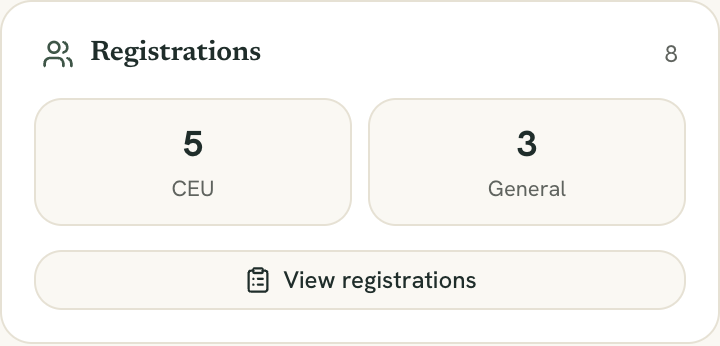
Open your conference from Content, then the Conferences tab. In the sidebar on the right, the Registrations card shows how many people have registered, split into CEU and General. Click View registrations to open the full list.
Registering for a conference enrolls the person in every session, so this is one list for the whole conference.
Read the totals
The boxes at the top of the page count active registrations:
- Registered: everyone who is not cancelled.
- CEU and General: how many hold each ticket type. General is the non-CEU ticket. See Price a conference.
- VIP: people who bought the VIP add-on. It only appears once someone has.
- Pass: people registered through a Summit Pass. It only appears once there is at least one.
- Certified: people who have earned a certificate in at least one session.
A line under the boxes breaks the count down by payment status, for example Paid, Comped, Free, and Pending. Cancelled registrations are left out of the totals. They still appear in the list, dimmed, so you can see the full picture.

Read the list
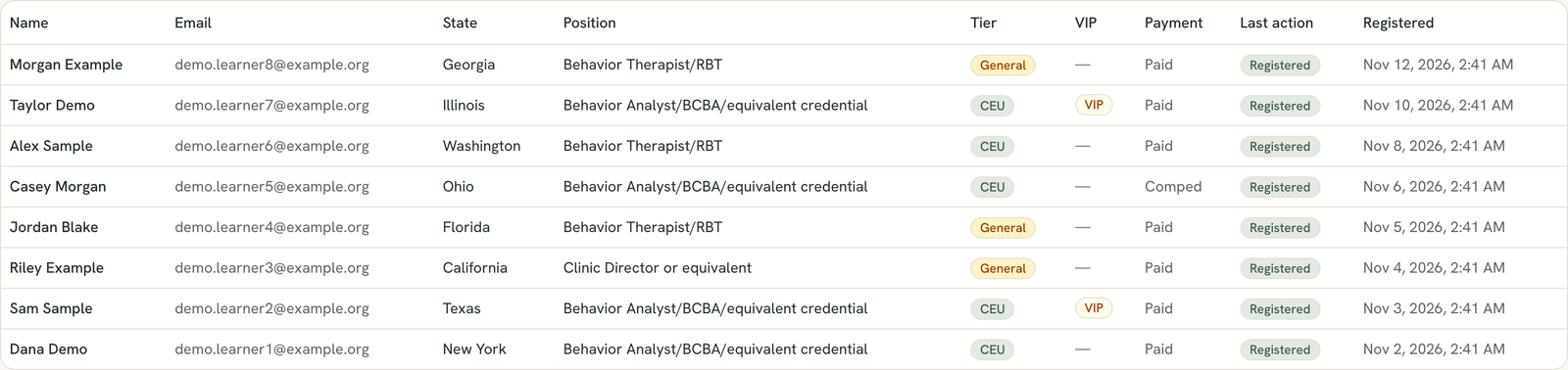
The table has these columns: Name, Email, State, Position, Tier (CEU or General), VIP, Payment, Last action, and Registered. The VIP column shows a VIP badge, a Pass badge, or both.
Last action shows how far each person has gotten across all your sessions: Registered, Took quiz, Passed CEU, or Certified. The list doesn’t show live attendance, because attendance is tracked per session. Use the reports in step 5 for that.
On a phone, the list shows as cards with the same information.
Export the list
Click Export CSV at the top of the page. The file has the columns Name, Email, Position, State, Tier, VIP, VIP Paid, Pass, Payment Status, Speaker Code, and Registered At.
The export also holds two things the page itself does not show:
- Custom answers. Each registration question you added gets its own column, headed with the question.
- Terms acceptances. If you turned on a terms checkbox and at least one person has accepted it, the file adds Terms Accepted At and Terms Text.
Speaker Code shows the speaker discount code a person used, if any. The list covers everyone, however many registered.
Open Reports and exports
From the conference page, click Reports in the row of buttons at the top. The page is titled Reports and exports. Sponsors can’t see it.
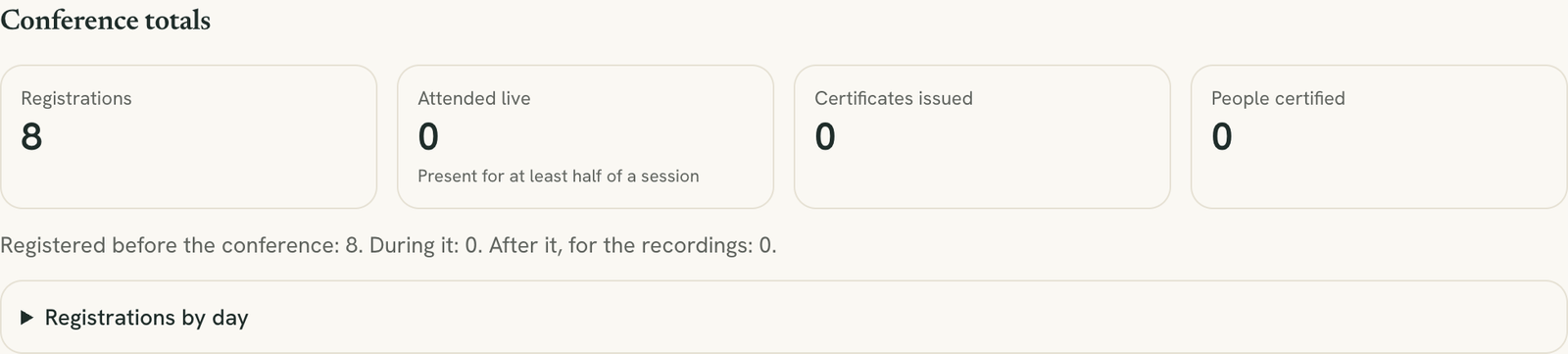
Conference totals shows four numbers: Registrations, Attended live (present for at least half of a session), Certificates issued, and People certified. Under them, a line says how many registered before the conference, during it, and after it for the recordings. Open Registrations by day to see sign-ups as a day-by-day bar chart.
Download an export
Under Exports, click a button to download a CSV:
- Registrants
- Certificates
- Attended live (raffle list): people present for at least half of a session
- Time present, non-CEU sessions: only shown if you have a session that awards no CEUs
The Organization column fills from a registration question named something like “Organization” or “Company”. Hosts, your team, and speakers are left out of the attendance lists.
Send each sponsor a delivery report
Sponsor delivery lists every sponsor on the conference. Under each name you see each placement they hold, the counts for it, and a By day table you can open. A sponsor with a fast-pitch session also shows the session’s Attendees and Attended live.
For each sponsor, click PDF or CSV to download their report, then send it to them yourself. Click All sponsors (CSV) for one file covering everyone.
Impressions are estimates
A test conference has no sponsor numbers. To set up what sponsors get, see Sell sponsor packages for a conference.
Still stuck? Contact support and we'll help.