View your registrants
Everyone who signs up for your event shows up here, along with where each person is in the CEU process.
Open Registrants from your checklist
Open your event, then click Registrants in the checklist.
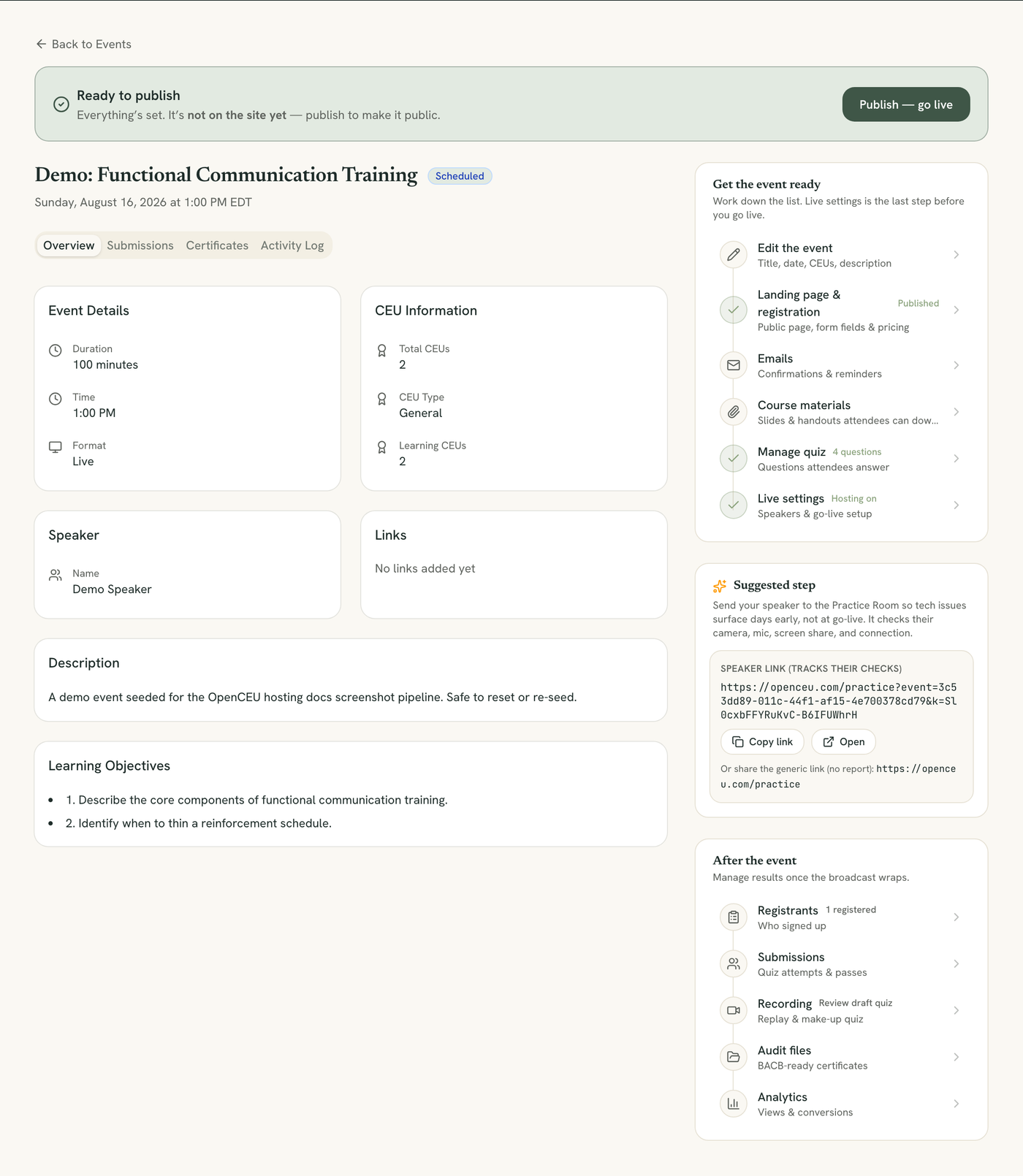
Check your stats
At the top, see your Registered count. Live events also show Attended Live and an Attendance Rate. Recorded courses show Certified and a Completion Rate instead.
Priced events also show Paid
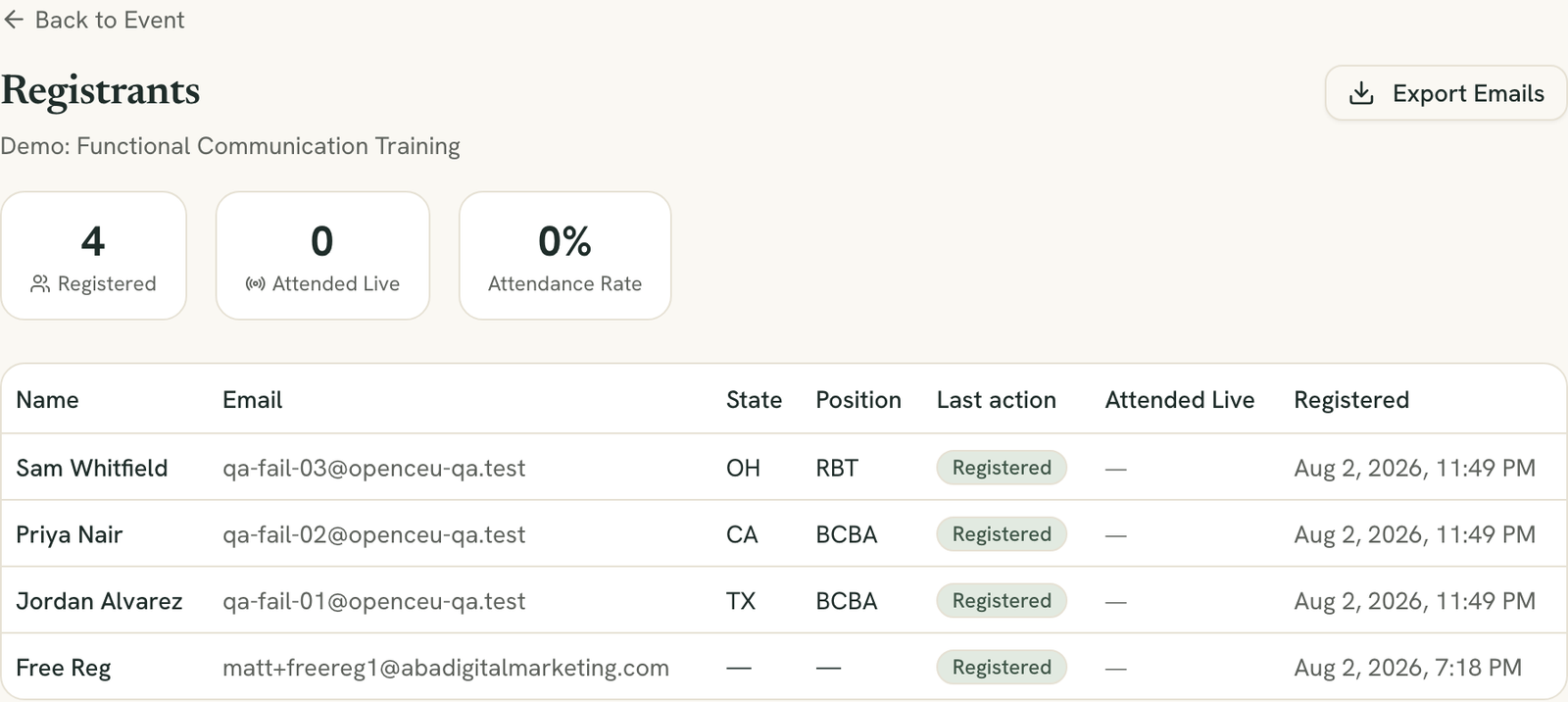
Read the Last action column
Each registrant carries a badge showing how far they have gotten: Registered, Took quiz, Passed CEU, or Certified.
Export the list
Click Export Emails at the top of the page to download the full registrant list.
Position and state
Download the attendance roster for your records
Click Download attendance roster for a spreadsheet with one row per attendee: when they joined, each attendance code they answered (with the time, and whether it was right), and when they were last seen. It also lists their BACB number, quiz result, and certificate number. All times are in your event's time zone.
About "Last seen"
The same roster is included for every event in your audit export (see Download audit files).
Still stuck? Contact support and we'll help.