Claim your certificate
OpenCEU does not issue a certificate on its own. After you meet the requirements for a course, you claim it on a short screen. It takes about a minute, and there is no deadline.
Open the claim screen
The claim screen appears once you have met the requirements. On a live event, it shows after the event ends. On a recording, it opens right after you pass the quiz. New to OpenCEU? See attending a live CEU or watching a recording.
If you closed the tab, you can come back any time. Open Certificates and look for the Ready to claim section, then click Claim it next to the course. A green banner at the top of the site also reads You have 1 certificate ready to claim (the number changes), with a Claim it link for each course.

Choose the certificate you want
Under Choose the certificate this event is eligible for, pick one option. You only see the ones the event offers, depending on the provider:
- BACB Learning CEU certificate (selected by default)
- QABA CE certificate
- IBAO CEU certificate
- General attendee (no credential)
General admission tickets
RBTs

Confirm your name and credential ID
Under Confirm the information on your certificate, type your Full name (first and last). The field starts blank every time, so enter your name the way you want it printed. An email address is not accepted as a name.
Then enter the ID that matches your choice: your BACB certification number, QABA certification number or IBAO certification number. A BACB number usually looks like 1-23-45678. If yours looks different, the screen asks you to double-check it, but you can still continue. General attendee has no ID field.
If your profile is missing your state or job title, the screen also asks for State you live in and Current job title under A little about you. Both are required in that case.

Rate the course
A star rating and a Yes or No answer to whether you would recommend the course are required. A short comment is optional. On a live event, these two questions sit on the claim screen itself. On a recording, you answer them before you submit the quiz.
The button stays off until everything required is filled in. A line under it lists what is still missing.
Generate and download
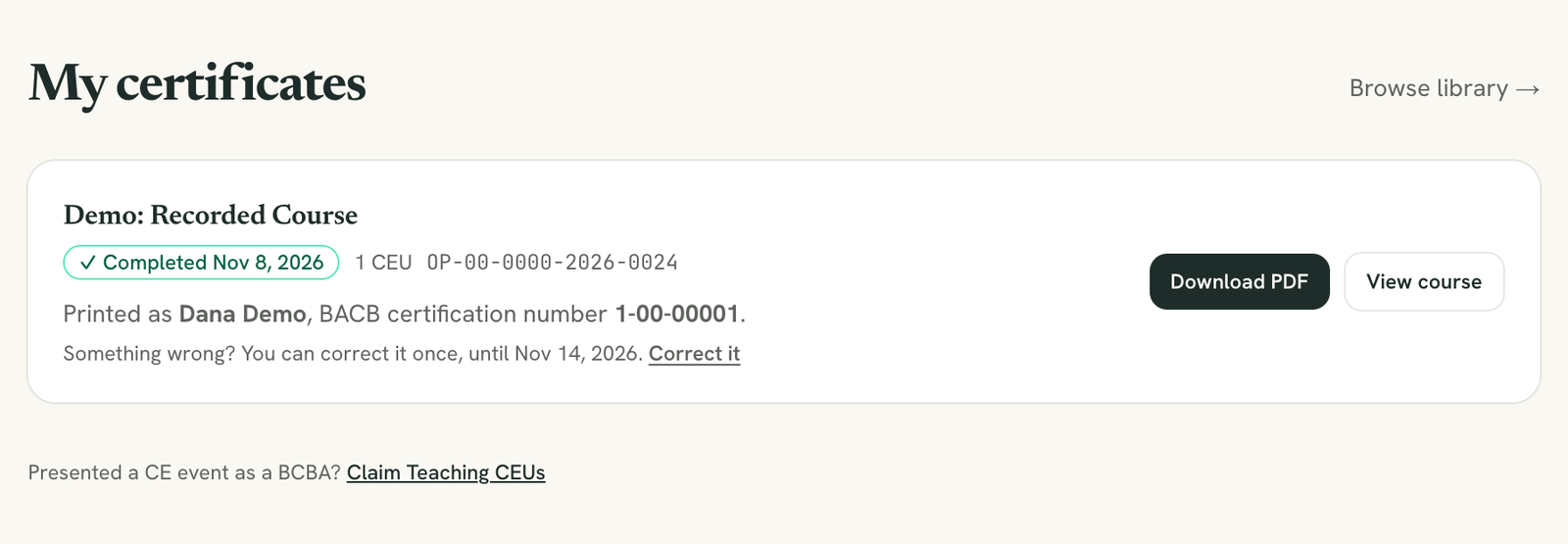
Click Generate my certificate. Your certificate then appears on the My certificates page, with its certificate number and a Download PDF button. A copy is also emailed to you.
Under your certificate, a line reads Printed as and shows the name and credential ID on it. Spot a typo? Click Correct it. You can fix your name or credential ID once, within 7 days of the certificate being issued. You get a new PDF, and the earlier one is kept on record. After that, or for a second change, use the support form below.
Your credential body is locked once it is issued
Find it again later
Every certificate you claim stays in your account. Open Certificates to download it, or My CEUs to see it in your full CEU log. See My CEUs for exports.
Reminders and deadlines
There is no deadline to claim. Providers must make a certificate available within 45 days of the event, and you can claim any time after that.
When a certificate becomes claimable, we email you once. If you have not claimed it 24 hours later, we send one follow-up. If it is still unclaimed, we remind you again about six months, nine months and a year after you earned it. The green banner and the Ready to claim list stay in your account until you claim it.
The claim button is missing?
- You may not have met the requirements yet. Live events need enough attendance checks. Recordings need every check and a passed quiz.
- The event may not offer credit. Those events show no certificate.
- You may have registered with a different email. Sign in with the email you used at registration.
- You may already have it. Check Certificates before you look for the claim screen.
Still stuck? Send us the course name through the support form.