Watch a recorded CEU and get credit
Recorded CEUs work on your schedule. Watch the video, answer the attendance checks as they appear, pass a short quiz, and your certificate is generated on the spot.
Before you start
Are you an RBT?
Find a course
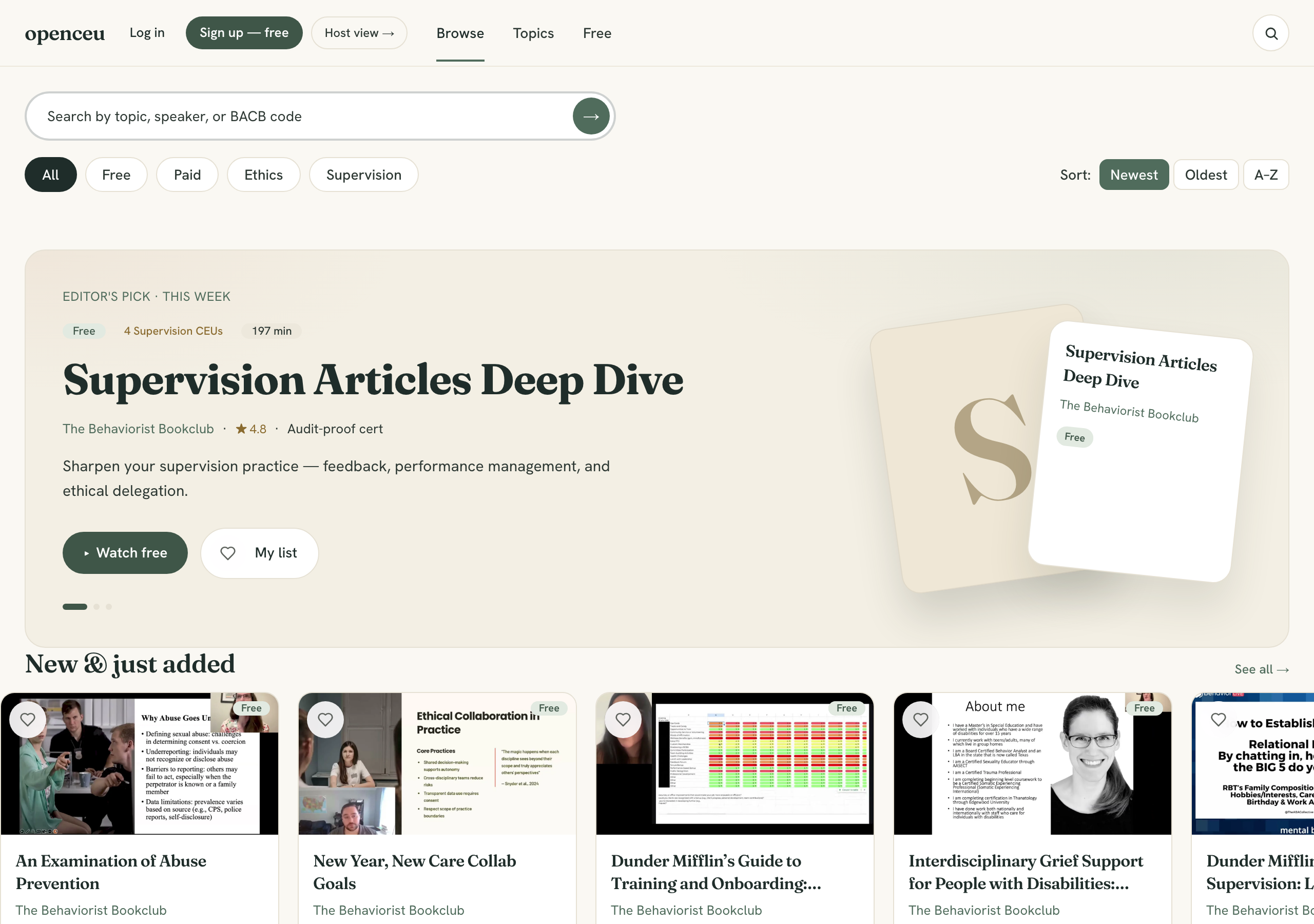
Open Courses and pick a topic. Each card shows the CEU count and whether it covers ethics or supervision.
Register, then start watching
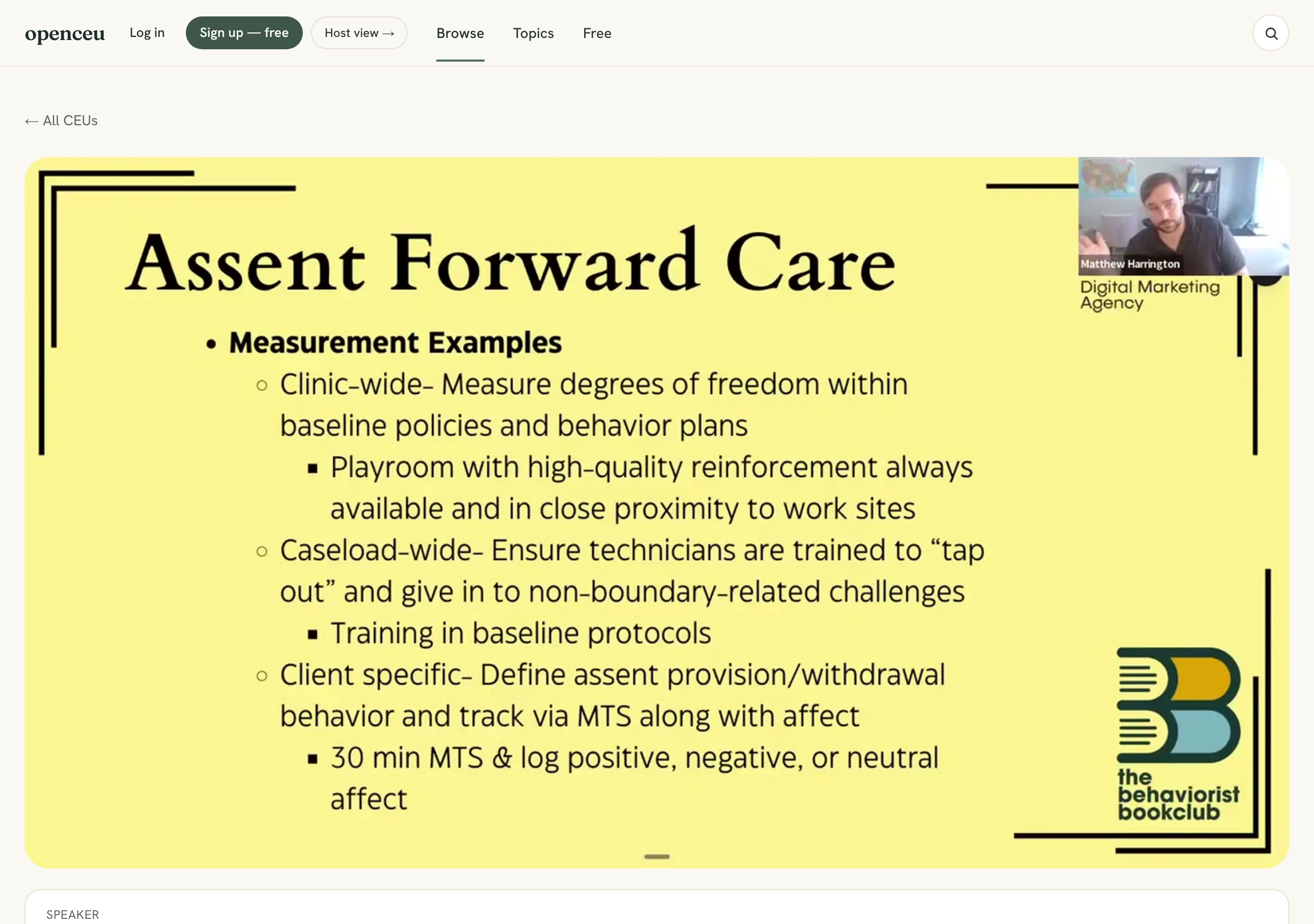
Open the course and click Register free & watch now. You'll confirm your name (and answer any quick questions the host added), and the recording opens right away — no waiting. It's free.
Watch in one sitting or come back later; your progress is saved.
Why register?
Answer the attendance checks
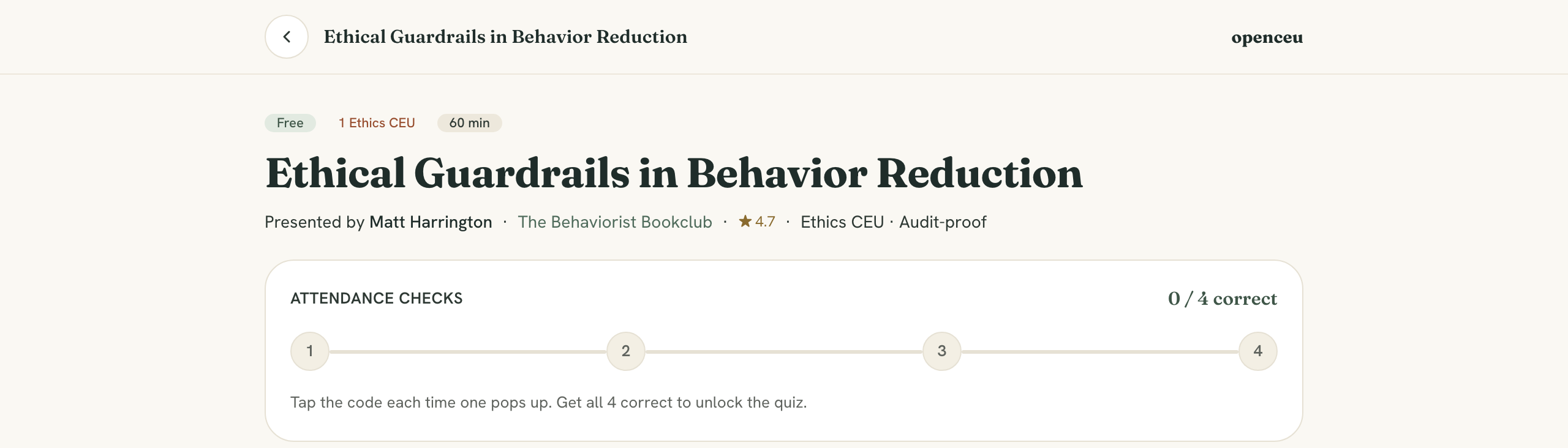
As you watch, attendance checks appear just like in a live event: a 4-digit code flashes at the bottom, then hides and four number buttons appear — tap the number you saw. You'll hear a ding each time so you don't miss one.
Missed one? Rewind and retry
Pass the quiz
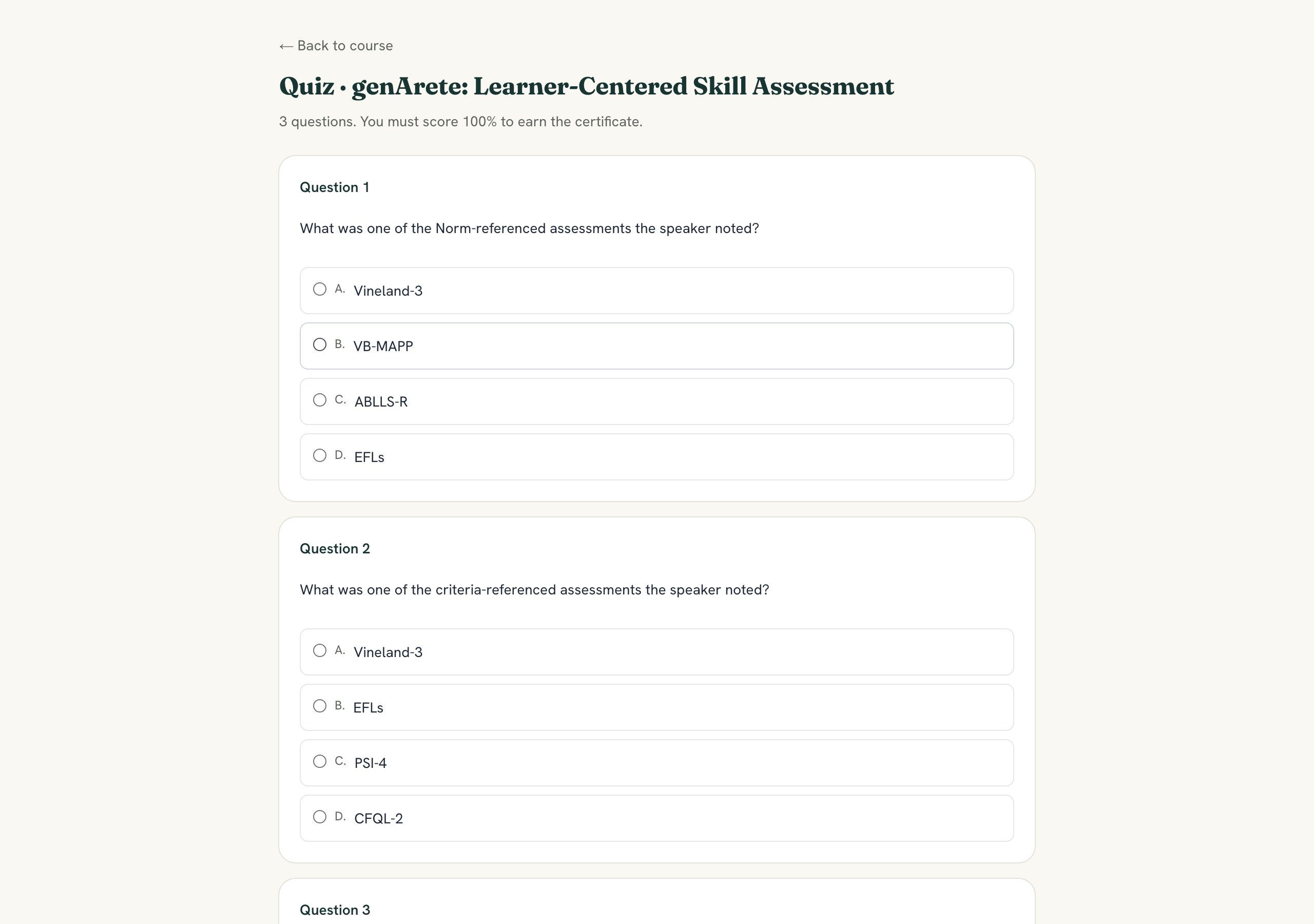
After the video, take the short quiz. You need every question correct — if you miss any, you can review and try again as many times as you need.
Get your certificate
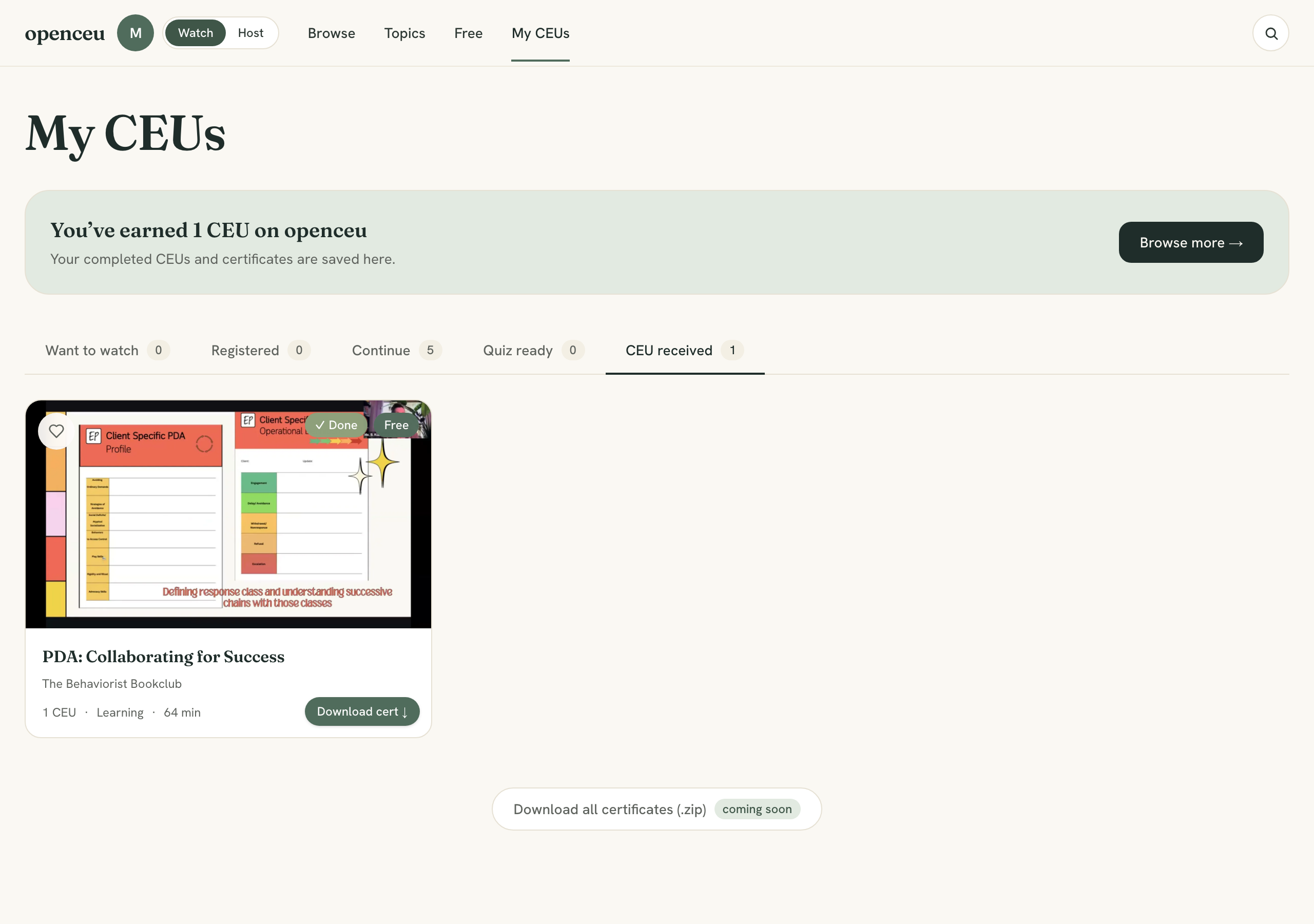
Pass the quiz and your certificate is generated instantly, emailed to you, and saved under Your Library. It's BACB documented, with your name, BACB number, and the full attendance record behind it.