Track your CEUs in My CEUs
My CEUs is your CEU log. Credit you earn on OpenCEU lands here on its own. You can add certificates from any other provider, watch your progress toward renewal, and export everything for an audit.
Open My CEUs
Click My CEUs in the top menu, or go to /library. You need to be signed in. It is free.
Set your renewal date
Until you set a recertification date, a banner reads Set your recertification date to track your cycle. Click Go to settings, or open Settings and find the CEU tracking card.
Set the Recertification date, choose your Credential type(s), pick any Licensed state(s), and turn on I supervise trainees or BCaBAs/RBTs if it applies. Then click Save CEU tracking. The supervision switch adds your supervision ring.
State license tracking is in beta

Read your cycle progress
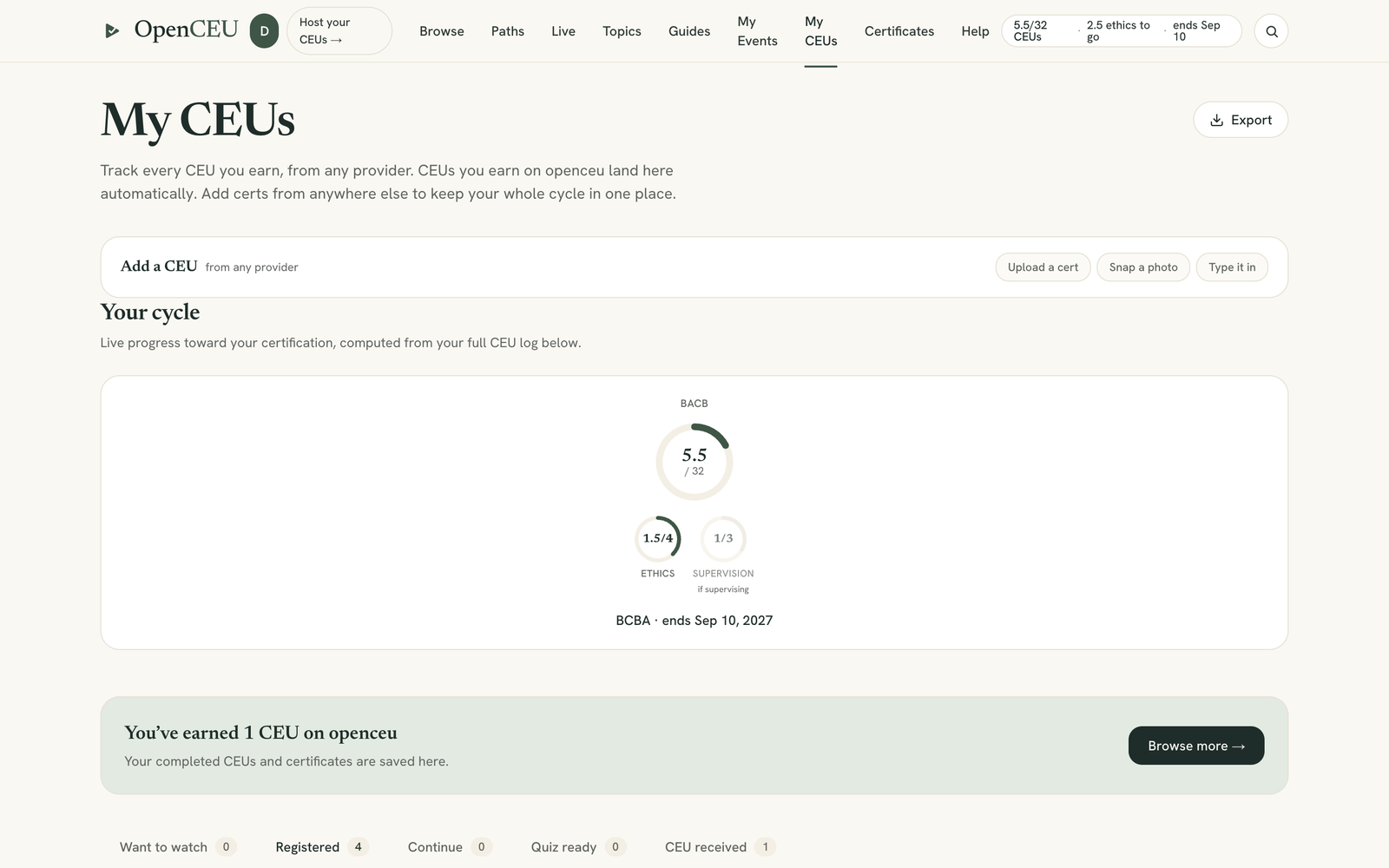
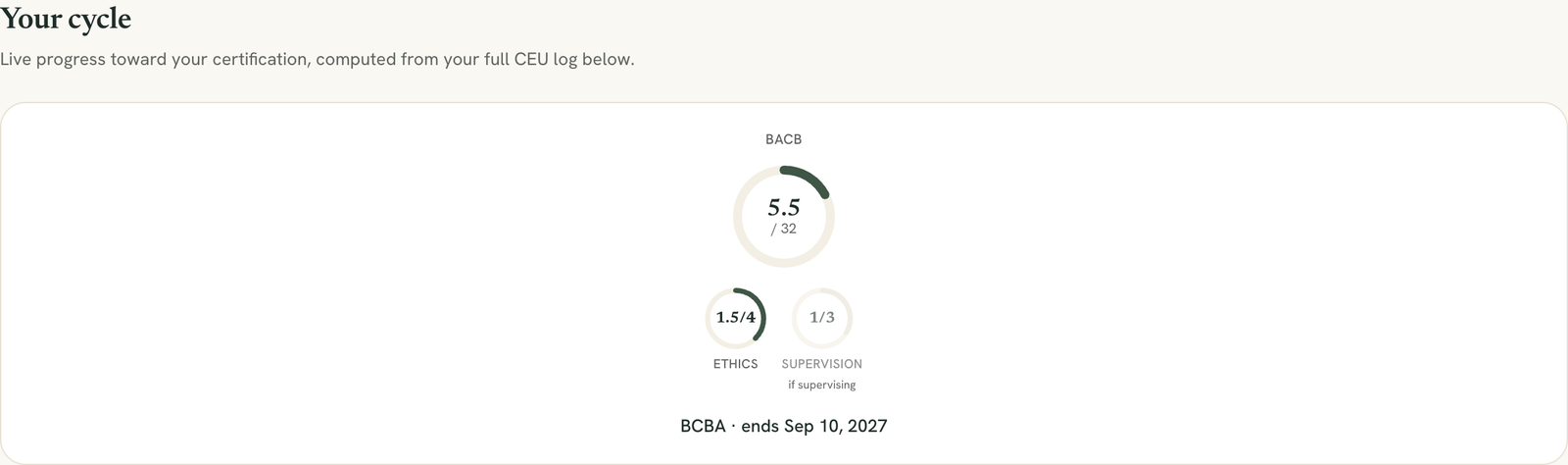
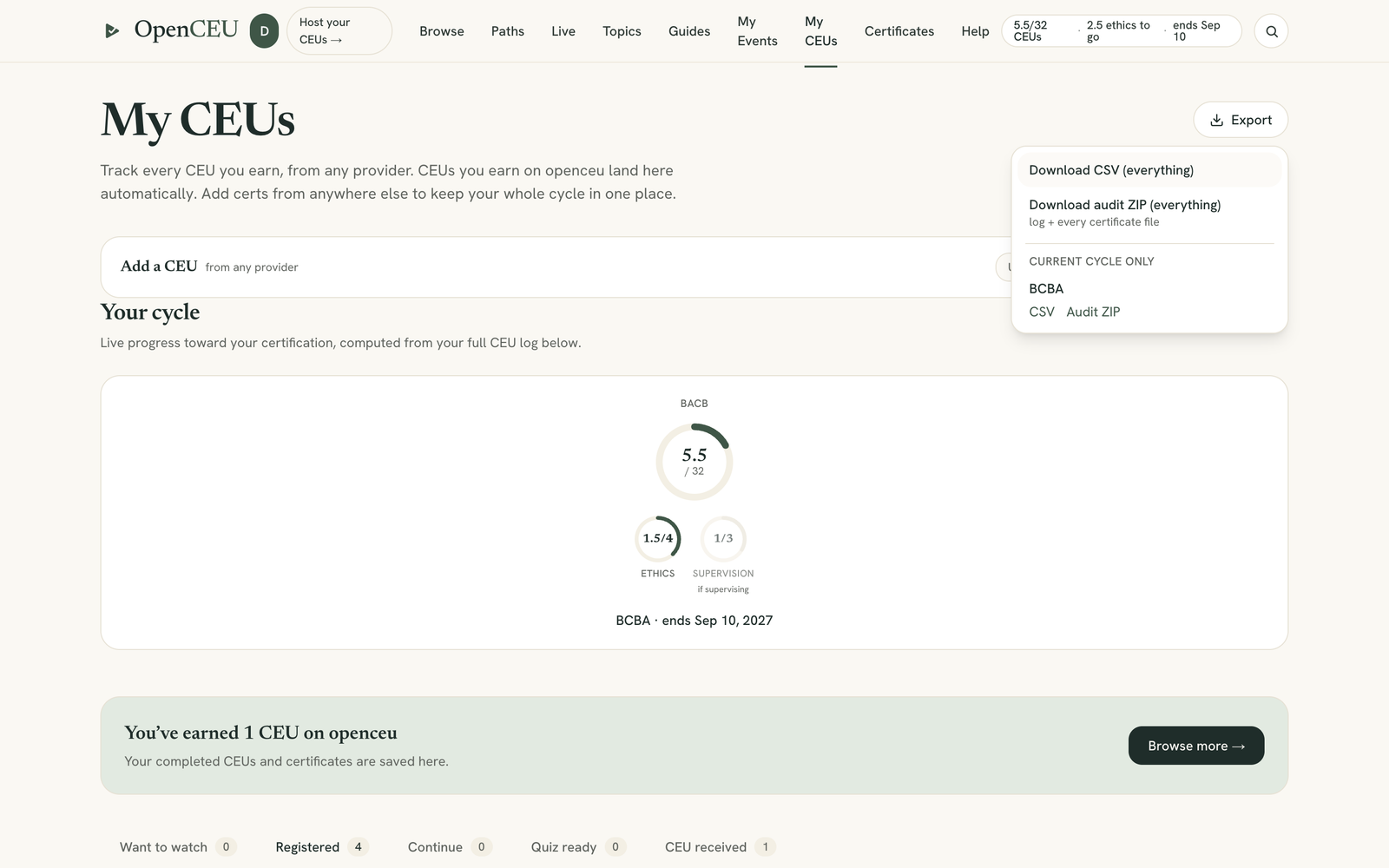
Under Your cycle, each credential you track has a set of progress rings: total units earned against what you need, plus rings for categories such as ethics and supervision. RBTs see PDUs. Everyone else sees CEUs.
A certificate can count toward more than one credential, such as BACB and a state license. In the log, you choose which ones each entry applies to.
Add a CEU from another provider
In the Add a CEU bar, pick one:
- Upload a cert: drag a PDF or photo in, or click Browse files.
- Snap a photo: click Open camera on your phone.
- Type it in: skip the file and enter the details.
We try to read the certificate for you. You then check the card: provider, event title, date, instructor, credit type (CEUs for BCBA/BCaBA or PDUs for RBT), the units, and notes. An event title is required. Click Save to my log. If we cannot read the file, it stays attached and you fill in the details yourself.
If an entry with the same title and date already exists, you are asked before it saves, and the button changes to Save anyway.

Edit or delete an entry
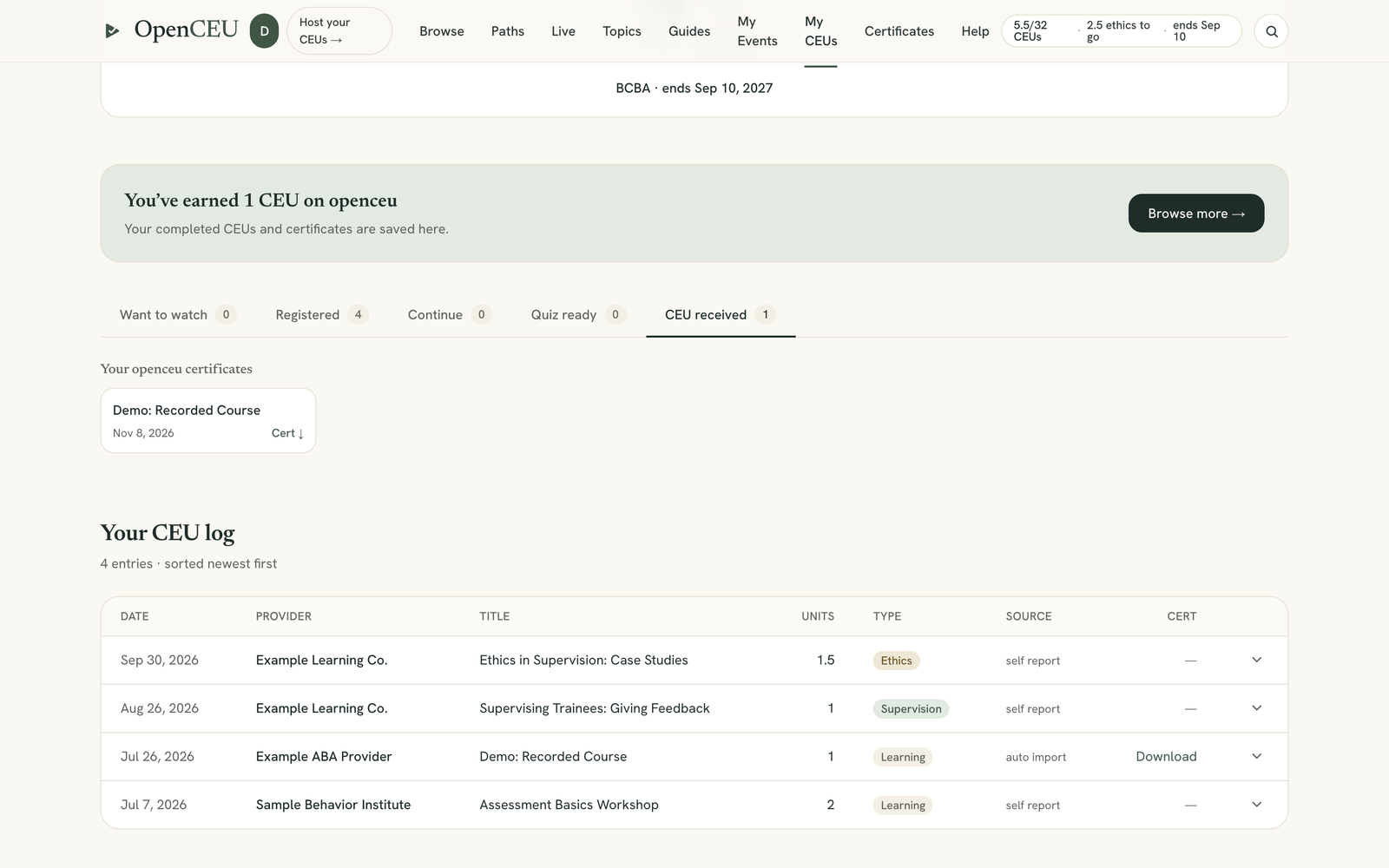
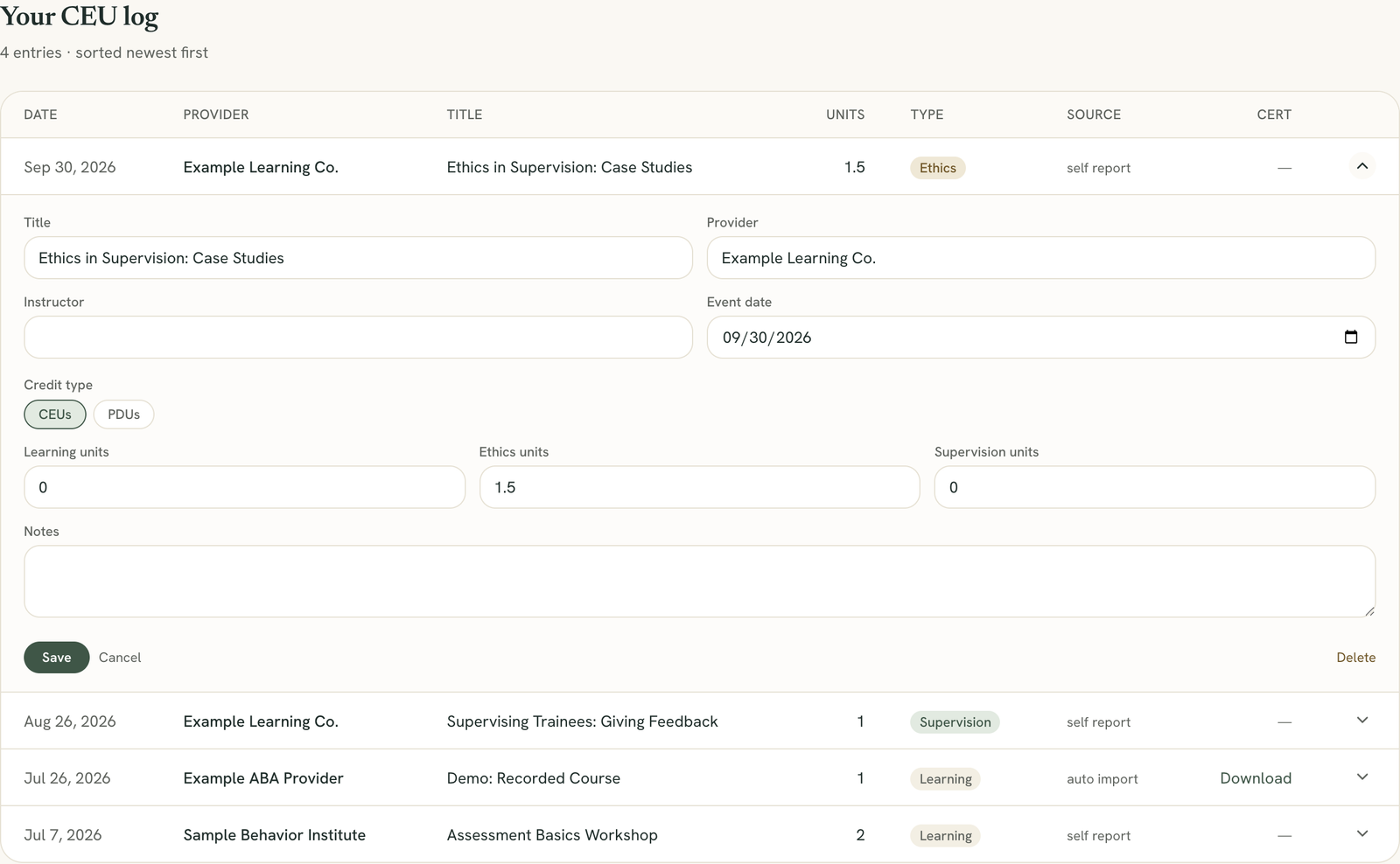
Scroll to Your CEU log, newest first. Each row shows the date, provider, title, units, type, source and a Download link for the certificate. Click the arrow at the end of a row to open it.
Entries you added yourself can be edited: title, provider, instructor, date, units and notes. Click Save. To remove one, click Delete, then Confirm. A deleted entry stops counting toward your cycle.
Entries earned on OpenCEU are not editable
Export your log
Click Export at the top right.
- Download CSV (everything)
- Download audit ZIP (everything): your log plus every certificate file
- Under Current cycle only, a CSV or Audit ZIP for each credential. These appear once you have a recertification date.
The ZIP can take a moment to build because it gathers every certificate file. If an export fails, the menu shows an error message.
Download a certificate
Open the CEU received tab for a row of your OpenCEU certificates, each with a Cert ↓ link. You can also use the Download link in the log, or open Certificates. Not claimed yet? See claim your certificate.
The other tabs sort your courses: Want to watch, Registered, Continue and Quiz ready.