Turn on hosting for your event
Hosting is off by default on every event. Turning it on publishes your live viewer page, green room, and attendance codes.
Open Live settings from your checklist
Open your event, then click Live settings in the checklist.
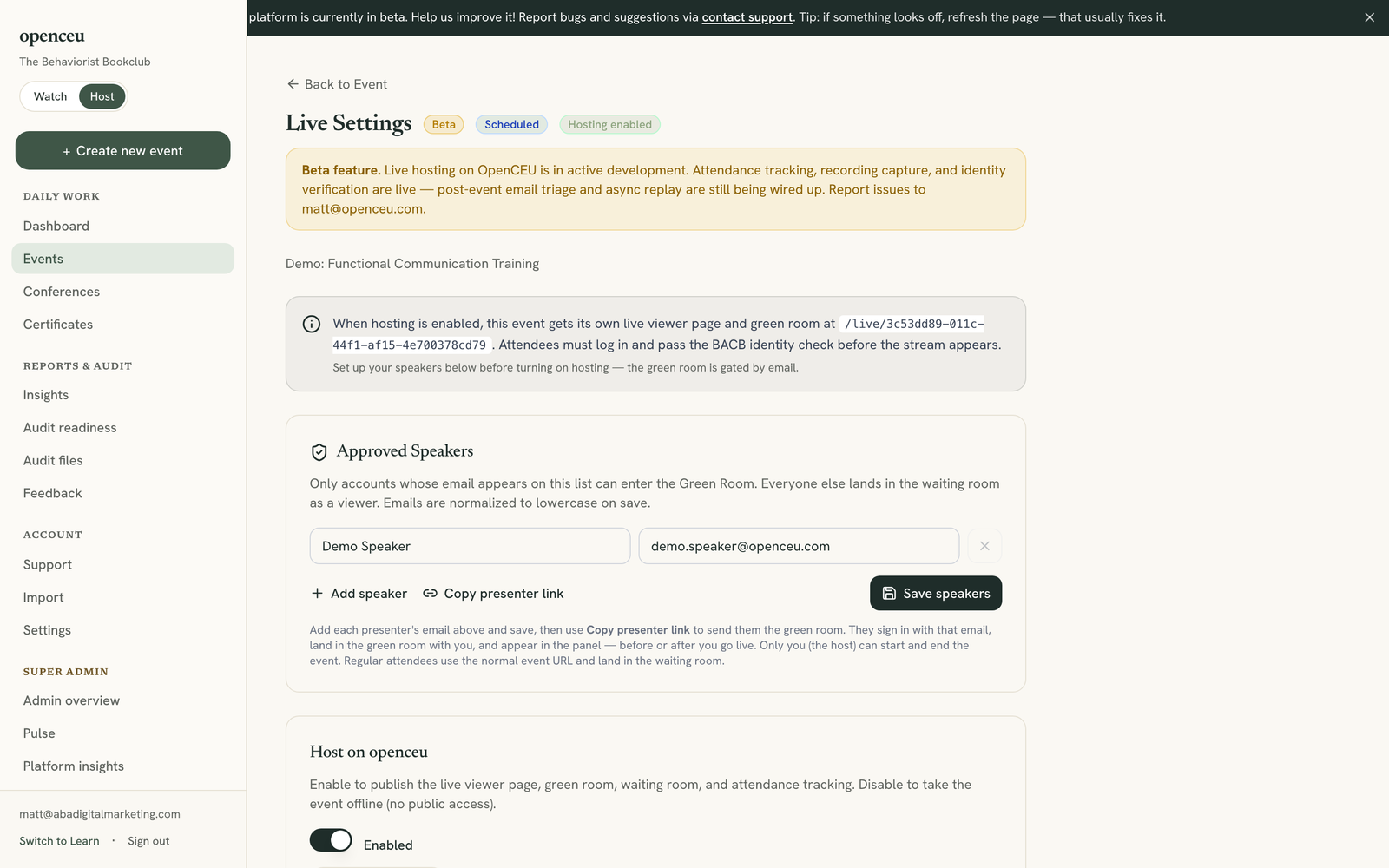
Set up your speakers first
The Approved Speakers card sits above the toggle for a reason: only accounts on that list can reach the green room once hosting is on. If you have not added speakers yet, add them now.
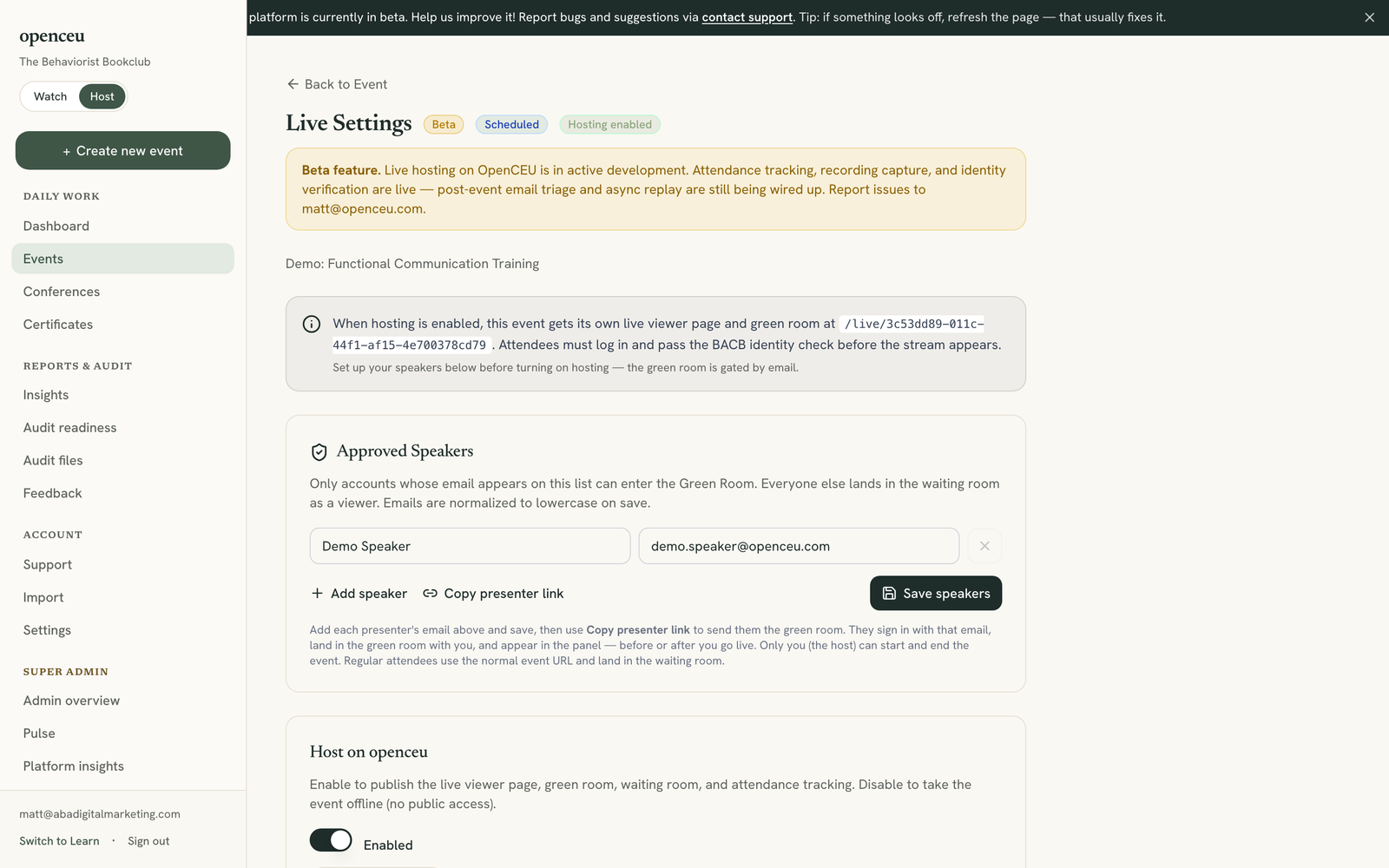
Turn on Host on openceu
Click the toggle under Host on openceu so it reads Enabled. This publishes the live viewer page, green room, waiting room, and attendance tracking.
Copy your event links
Under Event Links, copy the Viewer page link for registrants. The Green room link is for approved speakers only.
Never post the green room link publicly
Check your attendance codes
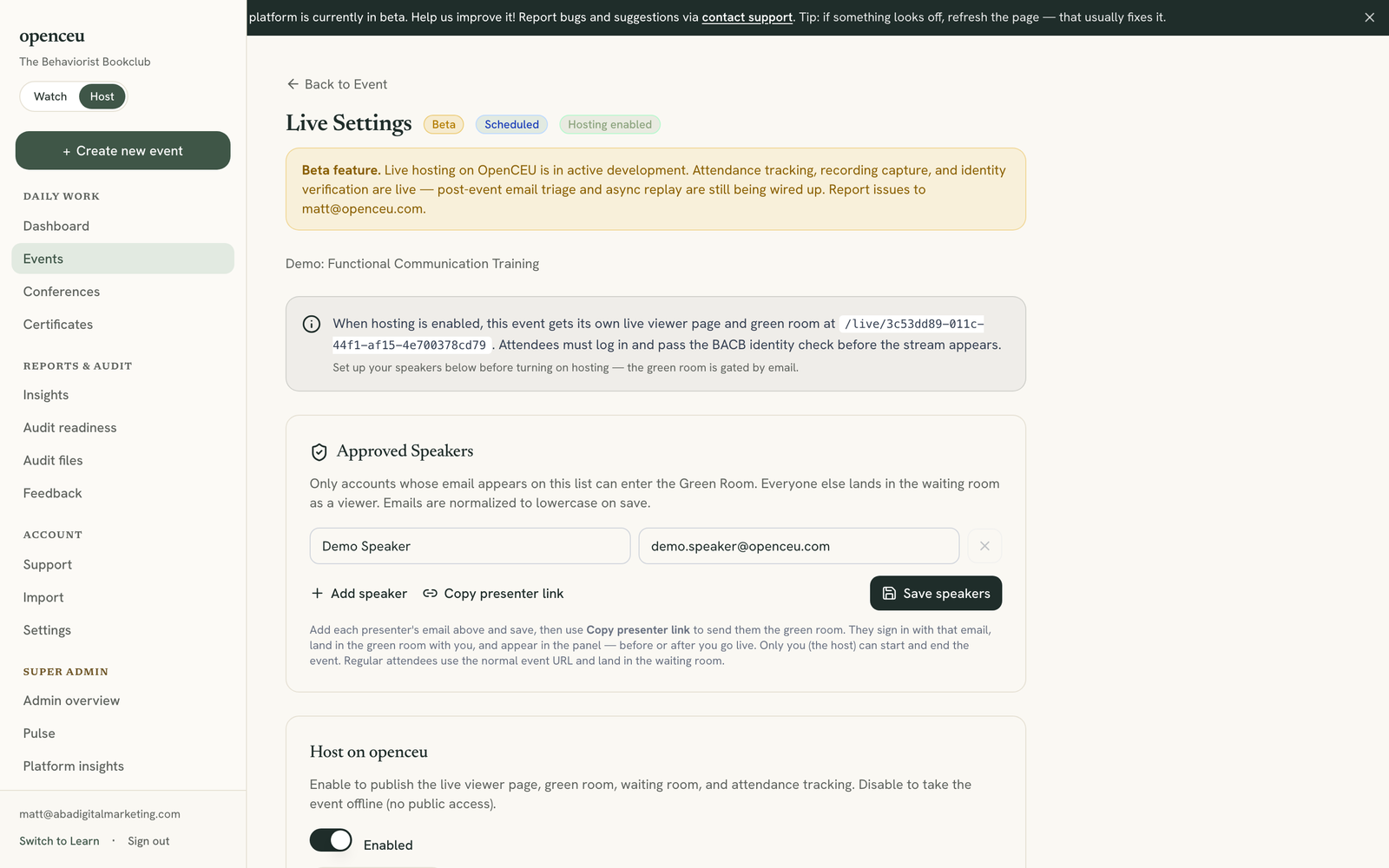
The Attendance Codes card fills in automatically once hosting is enabled. These 4-digit codes surface on the viewer page at fixed minute marks during the event.
Still stuck? Contact support and we'll help.