Add speakers to your event
Speakers get into the green room by signing in with an email you approve. Add each speaker here first, then send them the presenter link.
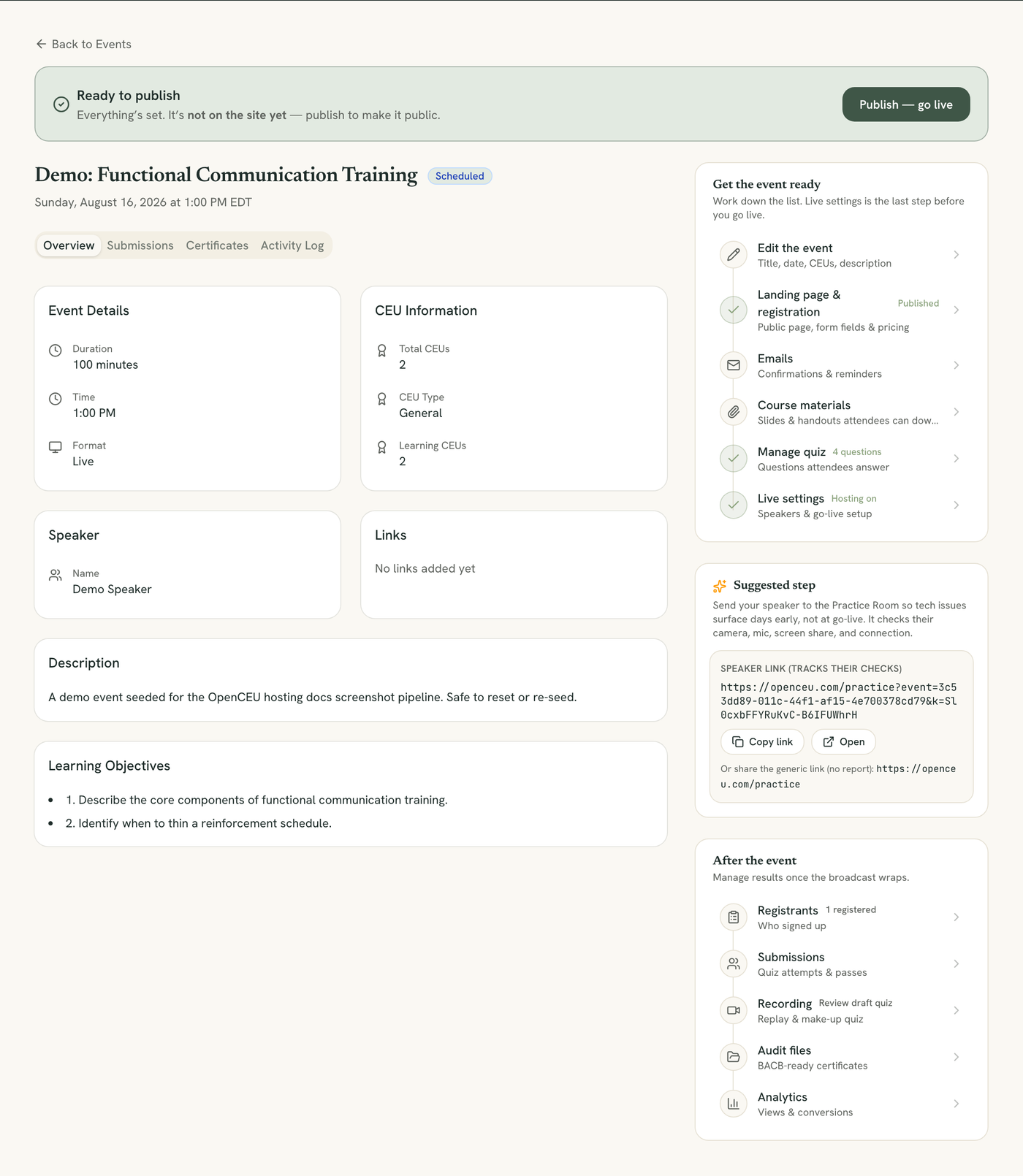
Open Live Settings for your event
Go to your event page and click Live Settings. You will see the Approved Speakers card near the top of the page.
Enter the speaker's name and email
Type the speaker's name in the first box and their email in the second box. Use the email they will actually sign in with.
The email must match exactly
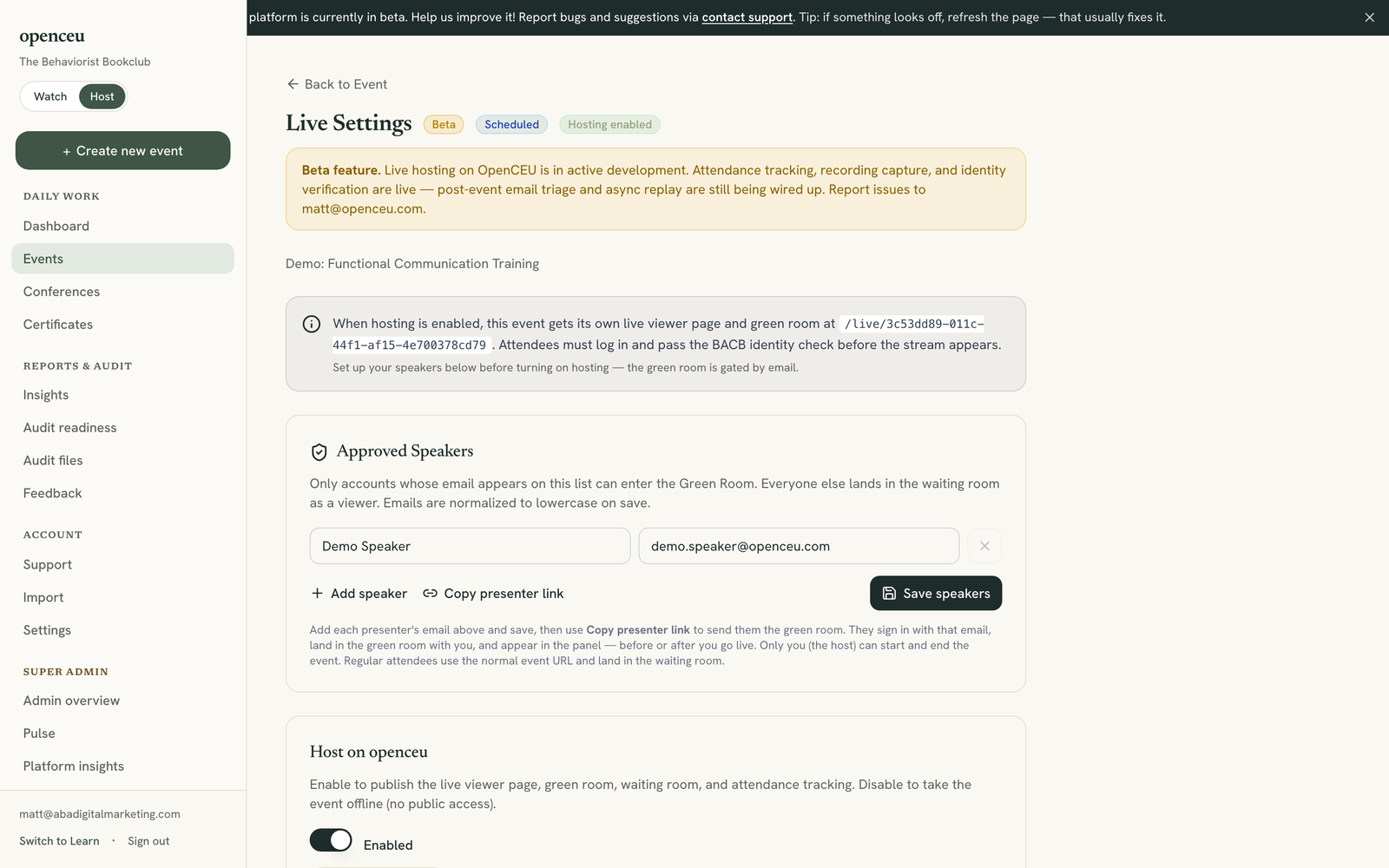
Add more rows for extra speakers
Click Add speaker to add another row. Repeat for every speaker or co-host on the panel. Every approved speaker uses the same presenter link.
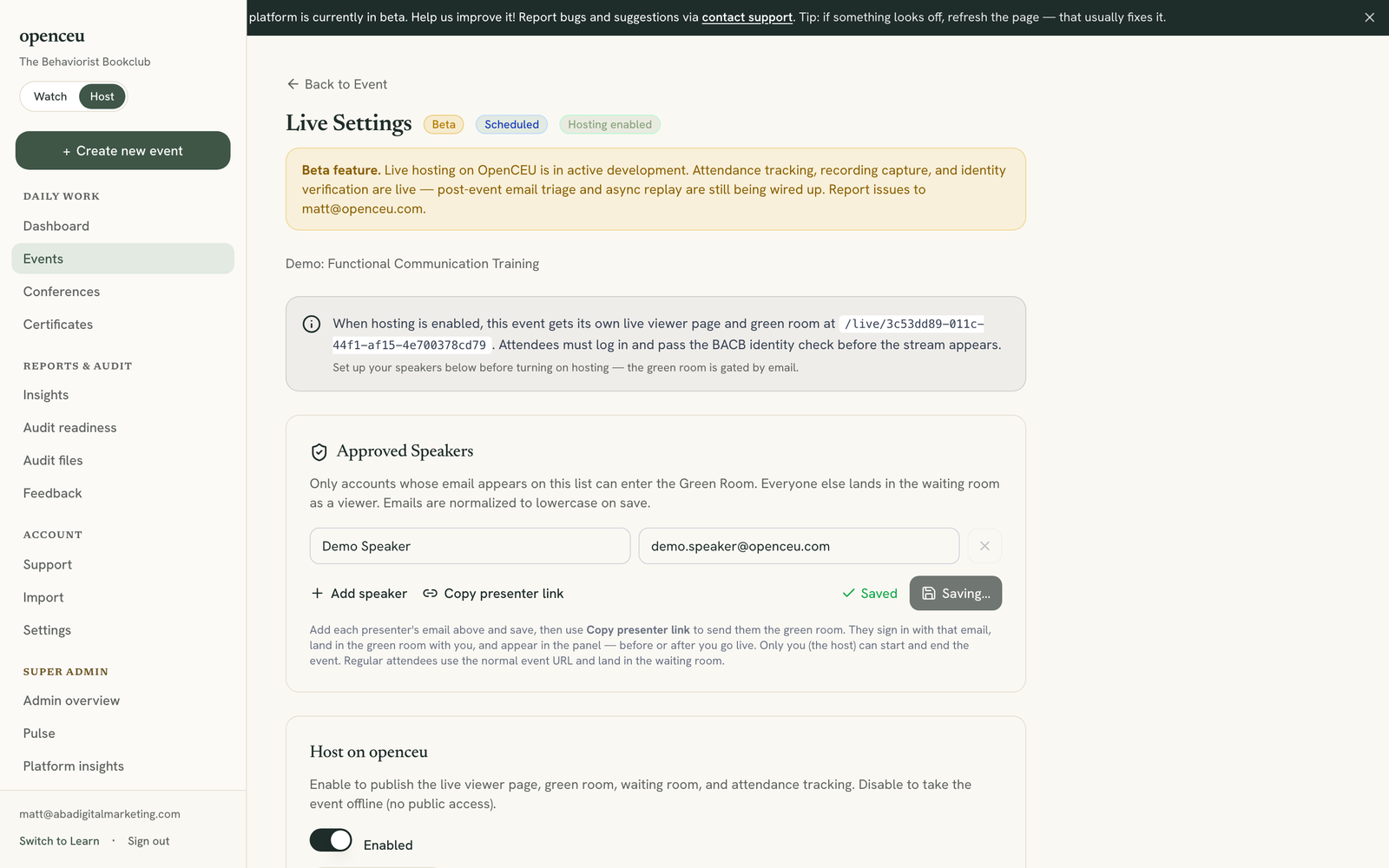
Save the speaker list
Click Save speakers. You will see a green Saved confirmation next to the button. Emails are saved in lowercase automatically.
New speakers get a calendar invite automatically
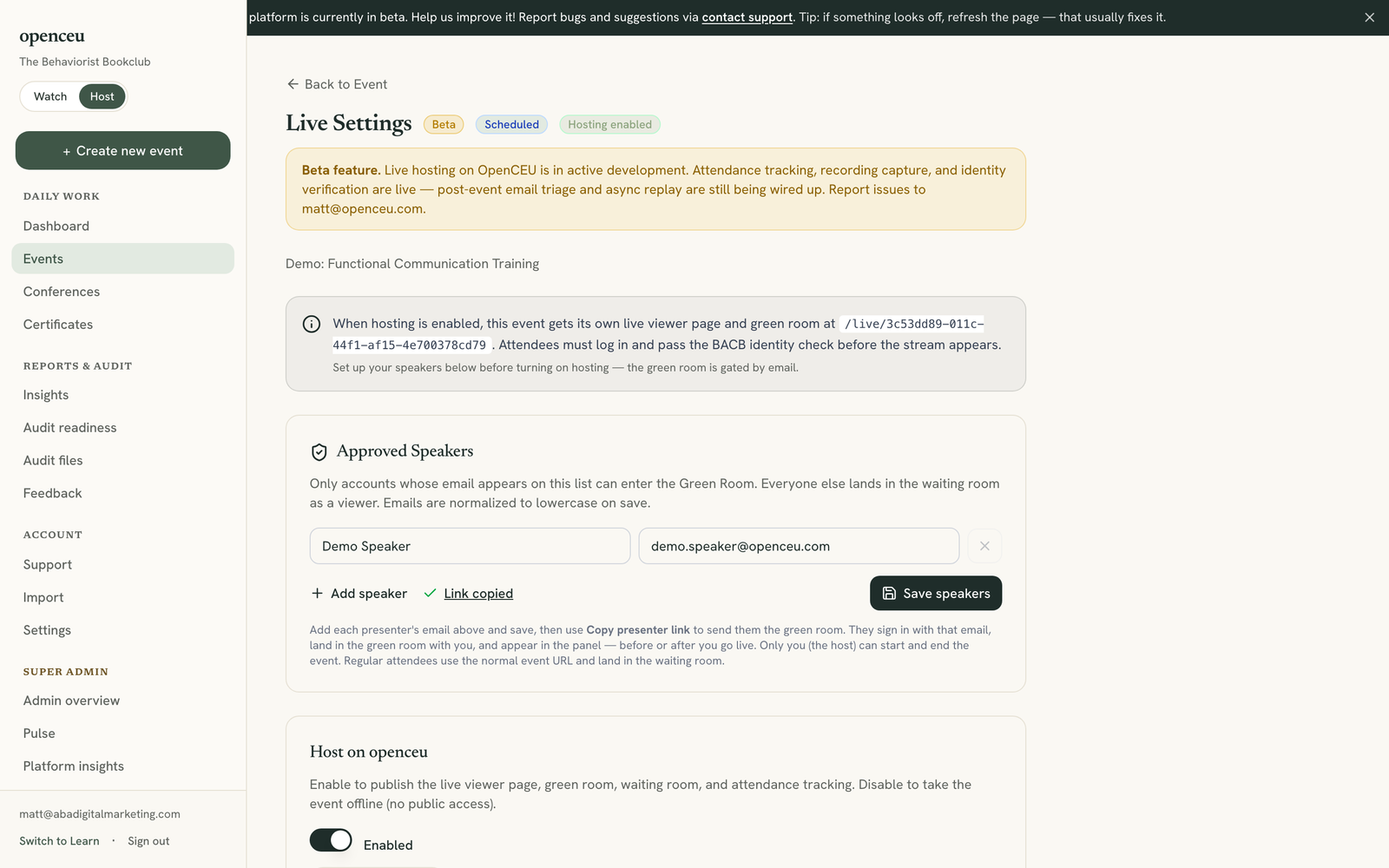
Copy the presenter link and send it
Click Copy presenter link. Send this link to every speaker you just added, by email or message. It is the same link for everyone on the list.
No organization needed
Still stuck? Contact support and we'll help.