Price your course
Price a recorded course from the Pricing card on its Recording page, or leave it free. Live events set their ticket price a different way, on the event's Edit page.
Open the Recording page
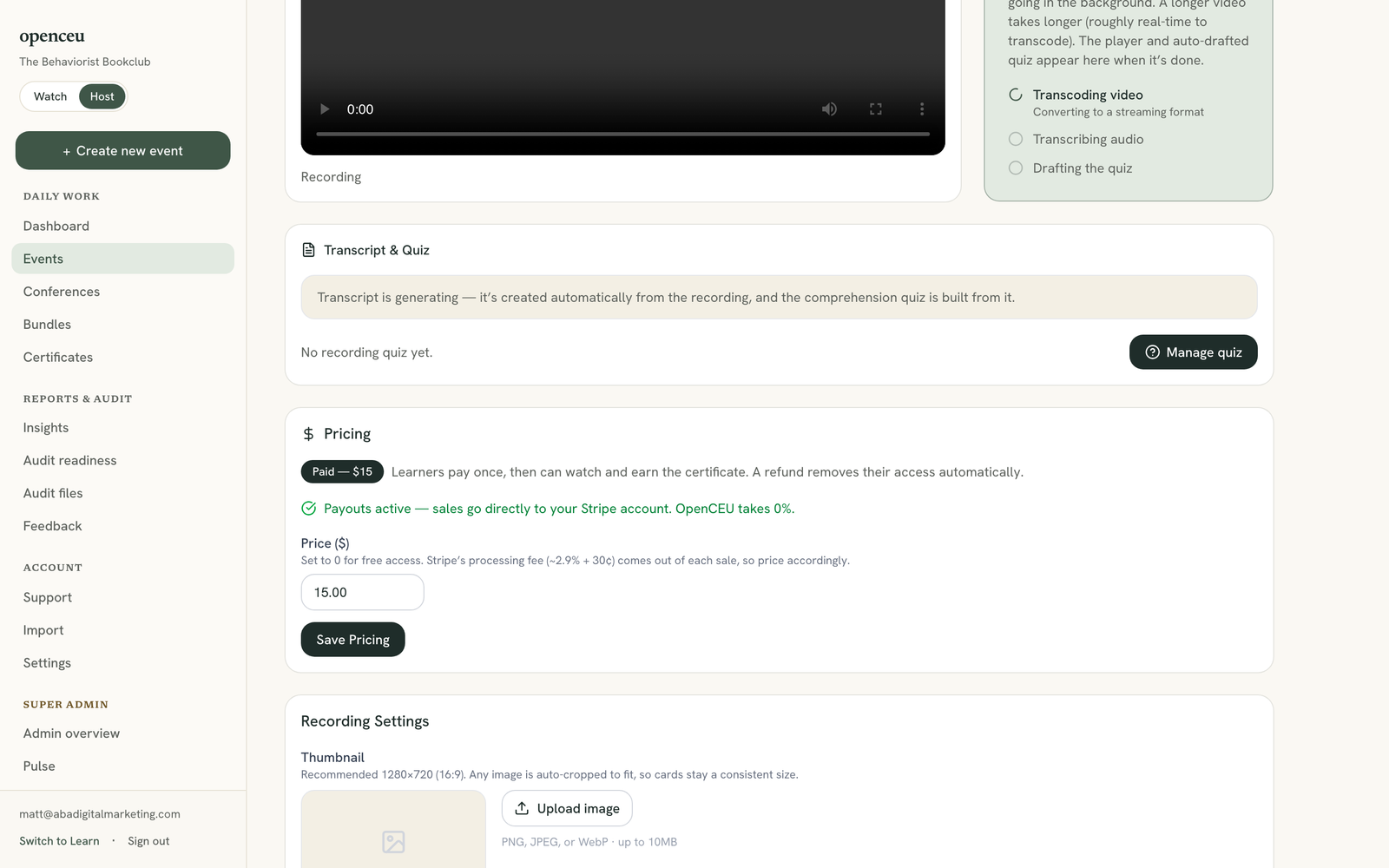
Go to your event page and click Recording. Scroll down to the Pricing card.
Pricing a live event instead?
Connect Stripe first
Before you can set a price, your organization needs an active Stripe payout connection. Go to Settings and find the Payments card. Click Connect Stripe to get paid and finish Stripe’s setup steps.
You are the merchant of record. Sales go straight to your own Stripe account. OpenCEU never holds your money and takes 0% of the sale.
Free courses skip this step
Set your price
Back on the Recording page, enter a dollar amount in the Pricing card and click Save Pricing. Set it to 0 to keep the course free. Learners who pay get access once, then can watch and earn the certificate any time after that.
Stripe takes a processing fee
If Stripe onboarding is not finished yet
Without an active Stripe connection, the price field is locked and the card shows an amber note telling you to connect Stripe in Settings first. A course with no price already set stays free until you finish onboarding.
If a course already has a price and your Stripe connection later drops, the field stays open enough to lower the price back to zero, but you cannot raise it again until Stripe is reconnected.
Refunds remove access automatically
If a learner is refunded, their access to the paid recording is removed automatically. There is nothing extra for you to do.
Changing your mind
You can lower your price back to zero at any time. See Set up your organization for more on account settings.
Still stuck? Contact support and we'll help.