Camera or microphone not working
Most camera and mic problems are a browser or operating system permission, not OpenCEU. Work through these checks in order.
Check your browser gave permission
Look for a camera or microphone icon in your browser’s address bar. If it shows as blocked, click it and choose Allow for both camera and microphone, then reload the page.
Check your operating system gave permission
Your computer has its own camera and microphone permission settings, separate from the browser. On a Mac, check System Settings under Privacy & Security. On Windows, check Settings under Privacy & security. Make sure your browser is allowed to use the camera and microphone there too.
Pick the right device
Click the small arrow next to the camera or microphone button in the green room to open the device menu. If you have more than one camera or microphone, like a laptop camera and an external webcam, make sure the one you want to use is selected.
Test on the practice page
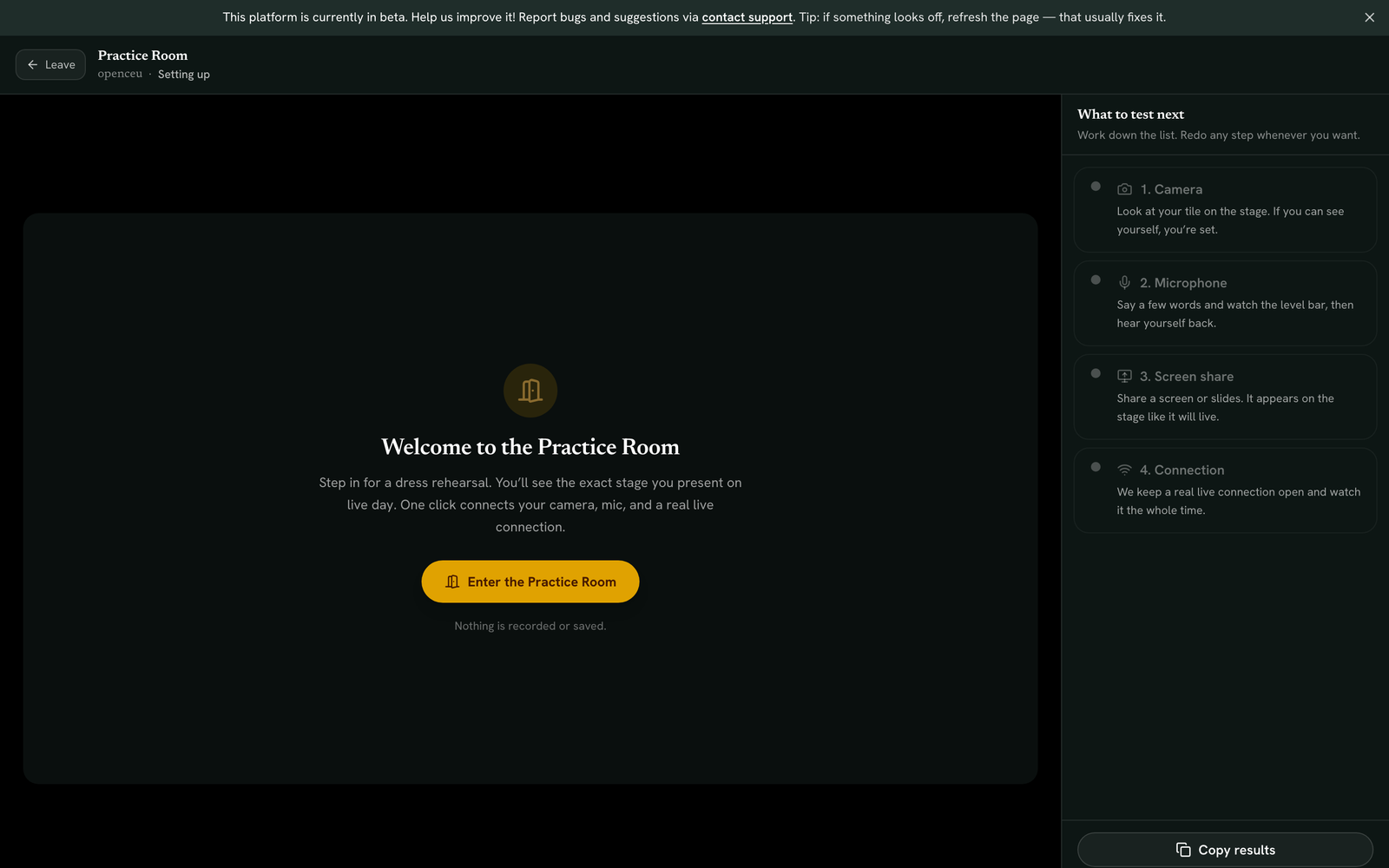
Go to openceu.com/practice to run a full check outside of any live event. It walks you through camera, then microphone with an echo test so you can hear yourself back, then screen share, then your connection.
Nothing is recorded
Still not working
Try a different browser, like Chrome. Close other apps or browser tabs that might be using your camera, such as a video call app running in the background. Restarting your browser or your computer clears most stuck permission states.
Still stuck? Contact support and we'll help.