Test your camera and microphone
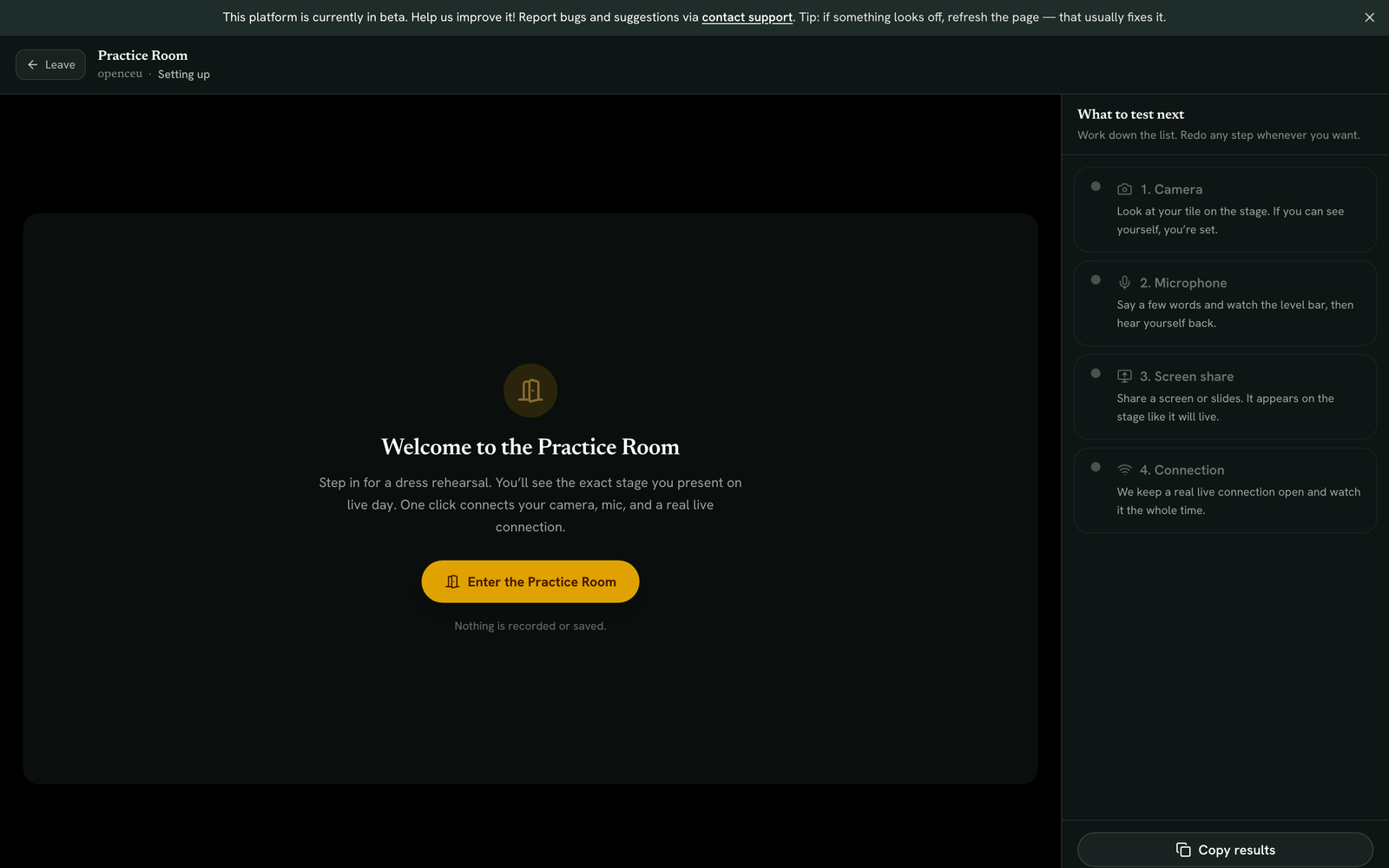
The Practice Room is a dress rehearsal on the same stage you present on live day. It checks your camera, mic, screen share, and connection for real.
Open the Practice Room link
Go to openceu.com/practice, or use the tracked link a host sent you. No account or sign-in is needed.
Enter the room
If you opened a link a host sent you, type your name so your results report back to them. Click Enter the Practice Room. Your browser will ask to use your camera and microphone.
Confirm your camera and mic pass
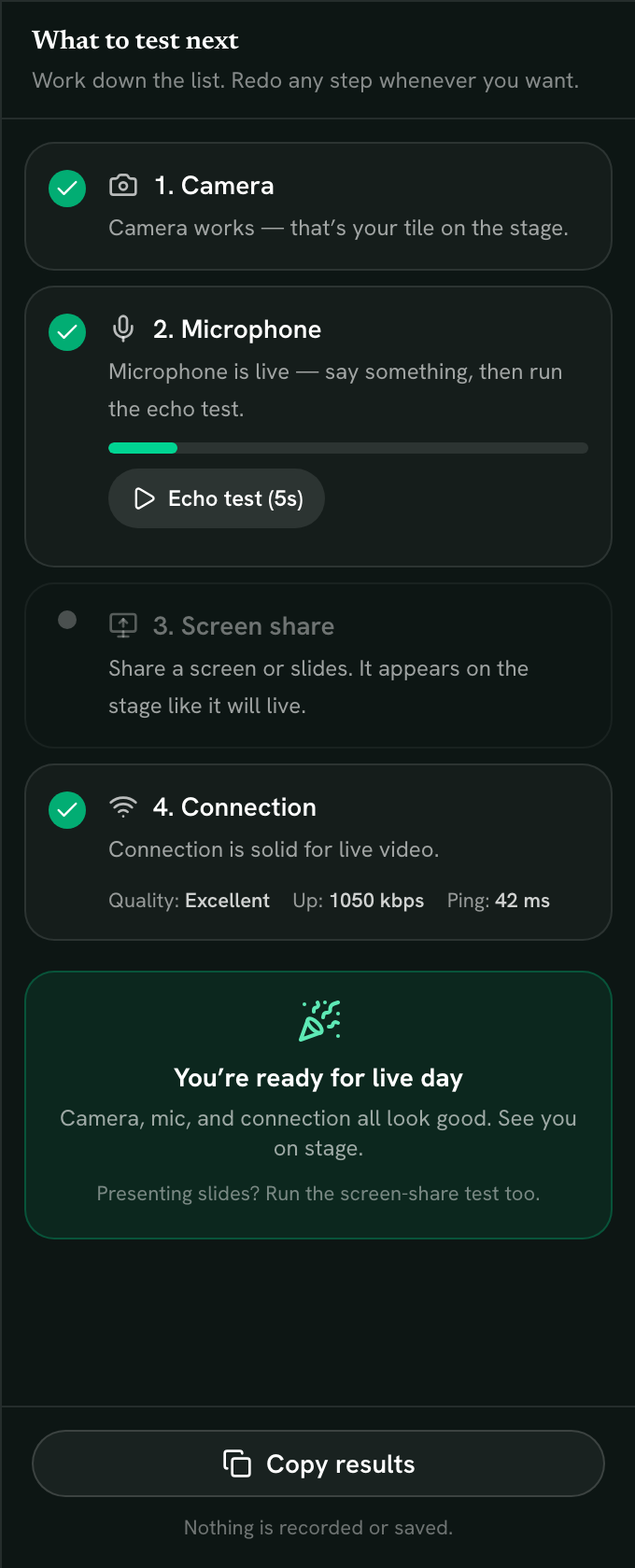
Look at your tile on the stage. If you can see yourself, your camera passed automatically. Say a few words and watch the level bar move for your microphone.
Run the echo test
Click Echo test to record 5 seconds of audio, then listen to the playback. This confirms your mic actually sounds right, not just that it is detecting sound.
Test your screen share
Click Test screen share, then pick a screen, window, or tab. It appears on the stage exactly like it will live. Click Stop sharing when you are done.
Mac users may need a permission
Watch your connection quality
The Connection check runs the whole time you are in the room, using a real live connection, the same one you use on the day of your event.
Copy your results
Click Copy results to save a summary of every check. If you entered from a tracked link, your results are already shared with the host automatically.
Still stuck? Contact support and we'll help.