A speaker can't get into the green room
Work through these checks in order. Almost every case comes down to the sign-in email not matching exactly.
Check the email matches exactly
OpenCEU checks the email a speaker signs in with against the email you saved for them. It must match exactly, including the domain. A personal alias of the same address, like a plus-address or a different domain, does not count as a match.
A mismatch sends them to the waiting room
Check the speaker was saved, not just typed
Open Live Settings for your event and look at the Approved Speakers list. If the speaker’s row is there but you never clicked Save speakers, they are not approved yet. Click Save and confirm you see the green Saved message.
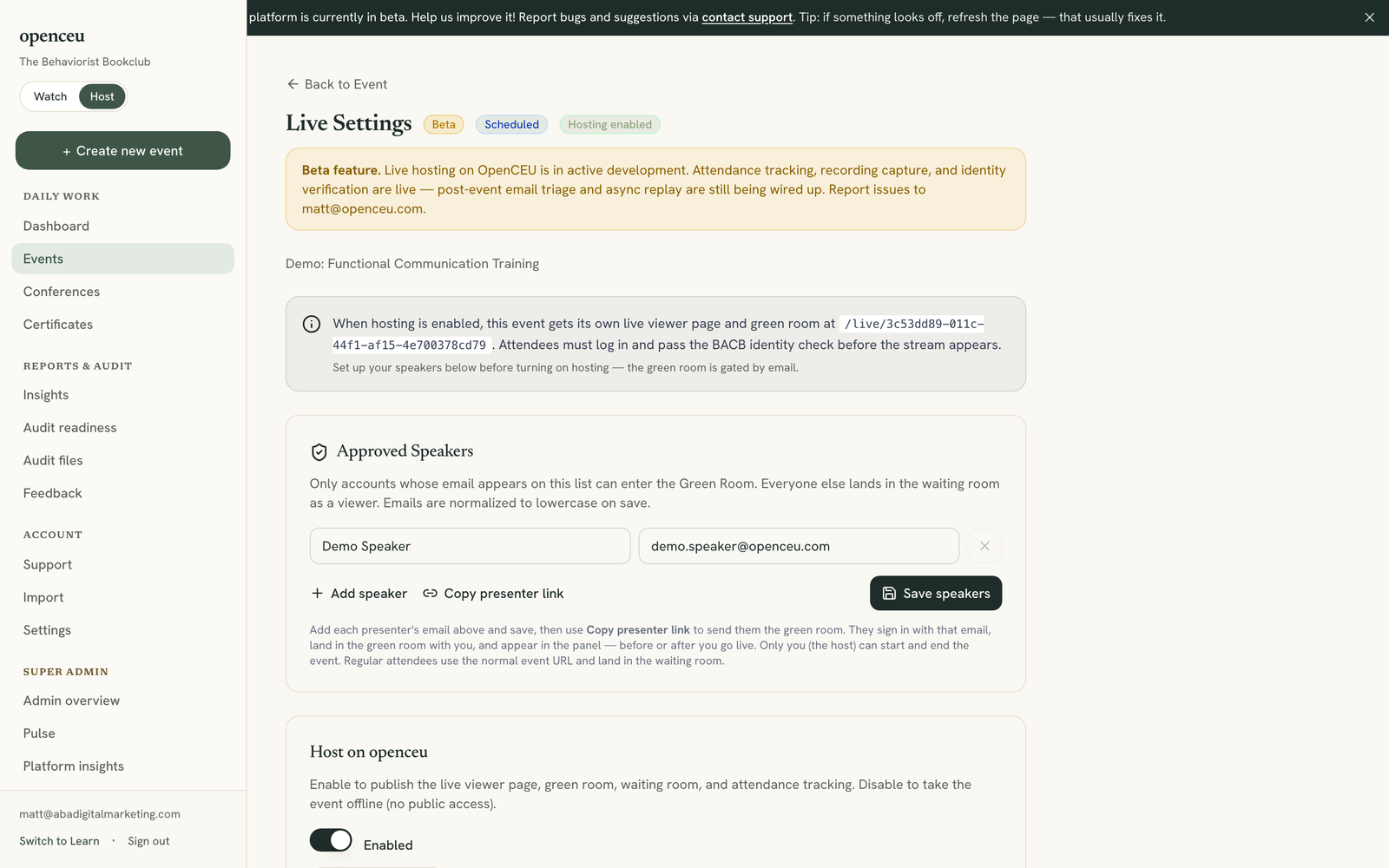
Check they used the presenter link, not the viewer link
Speakers use a different link than regular attendees. If someone sent your speaker the public event link instead of the presenter link, they will land in the waiting room even with the right email. Go to Live Settings and click Copy presenter link to get the correct one, then resend it.
Check they are signed into the right OpenCEU account
A speaker may have more than one email address, or may be signed into an old browser session under a different account. Have them sign out completely, then sign back in with the exact email you saved in Live Settings.
Check they have an OpenCEU account at all
A brand new speaker needs to create an OpenCEU account using the exact email you invited, before they can sign in. See Add a speaker who has no account yet.
Still stuck
If all of the above check out and the speaker still cannot reach the green room, contact support with the speaker’s exact email and the event link.
Still stuck? Contact support and we'll help.