Attend a conference or summit
One registration covers every session in a conference. Your schedule and join links live in My Events, and you claim a certificate for each session you complete.
Register
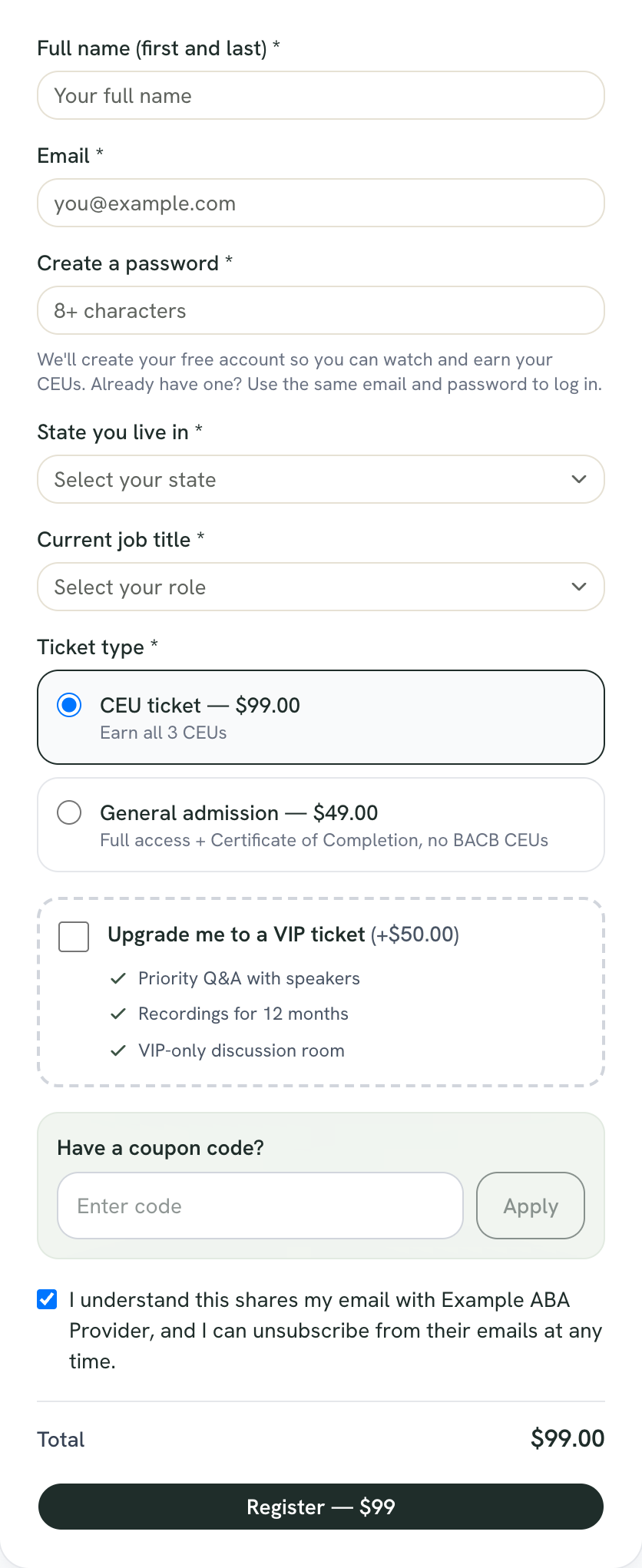
Open the conference page and use the registration form (the Register Now button jumps to it). Fill in Full name (first and last), Email, State you live in and Current job title. The host may add questions of their own.
If you are signed out, the form also asks you to Create a password (8 or more characters). It makes your free OpenCEU account in the same step. If you already have an account, use the same email and password to log in. Signed in already? The email box is locked to your account email.
Check the terms box, then click the button at the bottom. It reads Register for Free on a free conference and Register — $ and the price on a paid one, which takes you to secure checkout. Have a discount code? Enter it in the code box and apply it first. After a conference has ended and its recordings are up, the same button reads Get instant access.
Choose a ticket
Some conferences offer one ticket. Others show a Ticket type choice:
- CEU ticket: earn BACB CEUs for the sessions.
- General admission: full access and a Certificate of Completion, with no BACB CEUs.
Bought General admission and changed your mind? Open the conference page again while signed in. You see You hold a General admission ticket and a button that reads Upgrade to CEU ticket with the price difference.
Add VIP at checkout (if offered)
On a paid conference where the host offers VIP, a box reads Upgrade me to a VIP ticket with the extra price and the perks listed under it. Each conference sets its own perks. Check the box before you register to add it. The total updates as you do.
Summit Pass
Find your sessions and join links
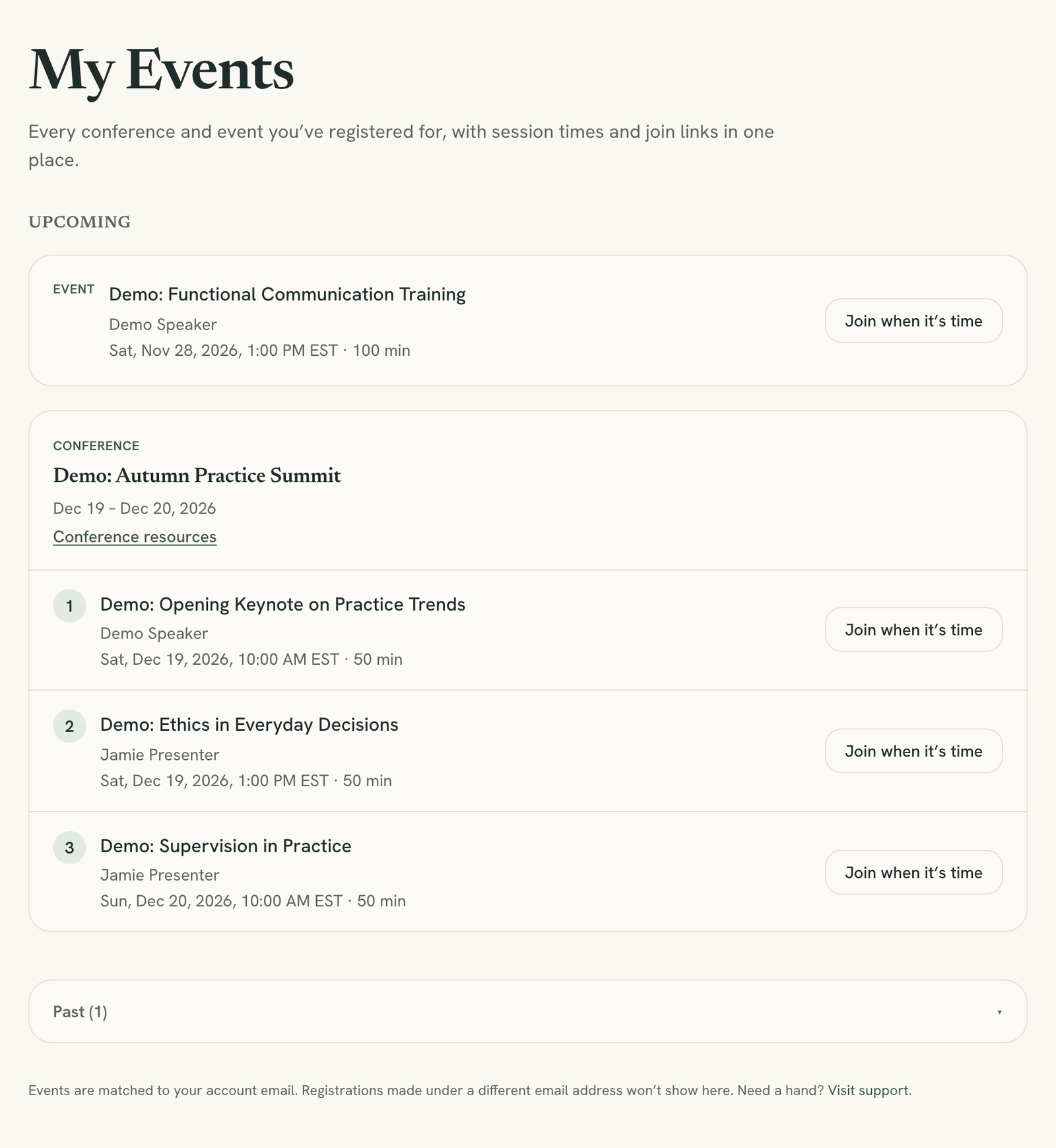
After you register, the page says You’re registered! and links to See your schedule & join links. That takes you to My Events, where the conference is listed with every session in order, its start time and its speakers.
Each session has a button. It reads Join when it’s time before the start, Join now or Join live now once it opens, and Watch after it ends if the recording is published. Otherwise it reads Ended, with a note that the replay is coming to My CEUs. Click a button to open that session’s page.
We also email you a confirmation, an email as each session goes live, and a reminder before the conference starts. On the conference page, you can add every session to your calendar.
Move between sessions
Each session is its own page with its own attendance checks. When one ends, go back to My Events and use the button on the next session. Past conferences collapse under Past.
Attendance is per session
Use the resource hub
If the host set one up, a Conference resources link shows under the conference in My Events. The conference page shows an Open the conference resources link once you are registered. It is for registered attendees only. It groups handouts, workbooks and links under From the organizers, By session and From our sponsors.
Some items unlock later. A locked item shows when it opens. If the page says nothing is there yet, check back closer to the conference.
Watch recordings afterward
Sessions with a published recording show a Watch button in My Events. If you buy a conference after it has ended, it shows under On demand with a Watch button per session, and you can watch in any order. Recordings use normal-speed attendance checks and a short quiz. See watching a recording.
If you buy a single recorded session from a conference, you may be offered the other sessions at one flat price. The page reads Add the other sessions and charges the card you just used only if you click the button. Declining takes you to your session.
Claim a certificate for each session
You get a certificate for each session you finish, not one for the whole conference. Claim each one on the claim screen. See claim your certificate. Sessions marked No credit in My Events do not issue a certificate.
Registered, but nothing shows in My Events?