Review the drafted quiz
OpenCEU writes draft quiz questions from your event recording. Check them over before you publish anything.
Watch for the review signal
After your event ends, OpenCEU makes a transcript and drafts quiz questions from it. This can take up to 30 minutes. When a draft is ready, your dashboard shows a banner that says Recordings need your review.
Once you publish an event's quiz, it drops off this list on its own. To hide an item you don't need to review, click Dismiss next to it. Dismissing does not change or publish the quiz.
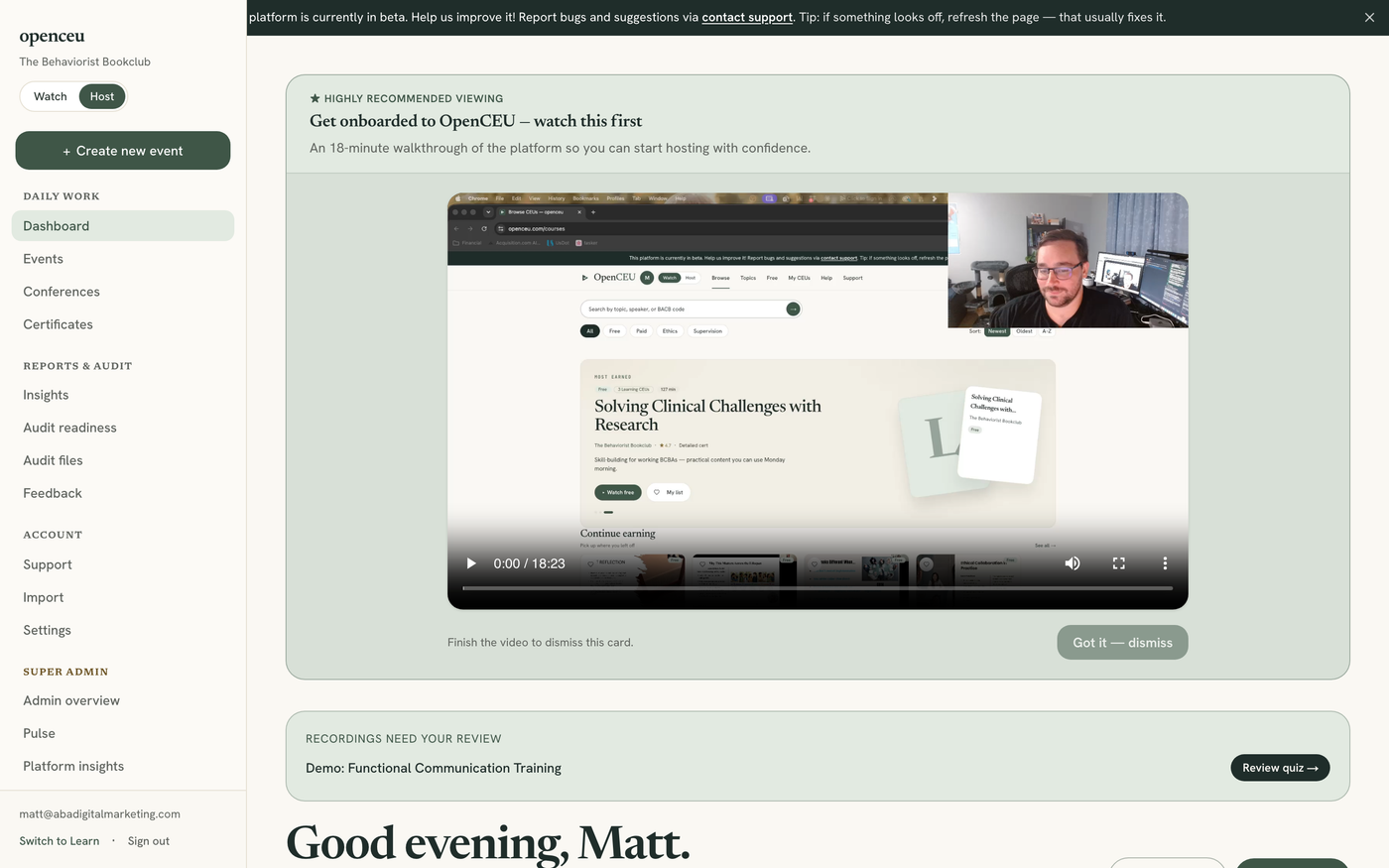
Open your Recordings page
Go to your Recordings page. It lists every event that has a recording, along with its quiz status.
Bookmark this page
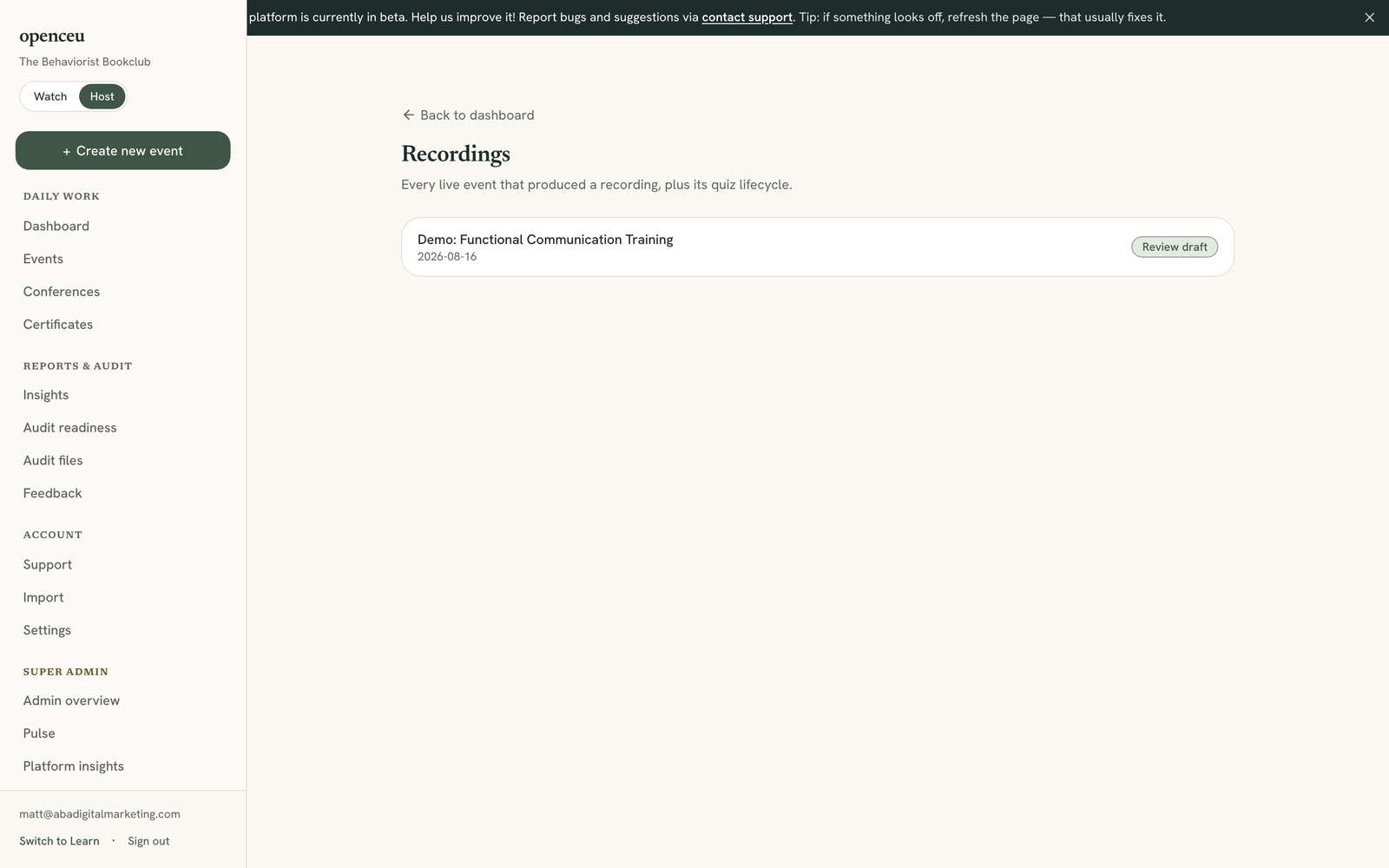
Open your event's draft
Click your event to open the draft. You will see the questions OpenCEU wrote, each with four answer choices.
Still drafting?
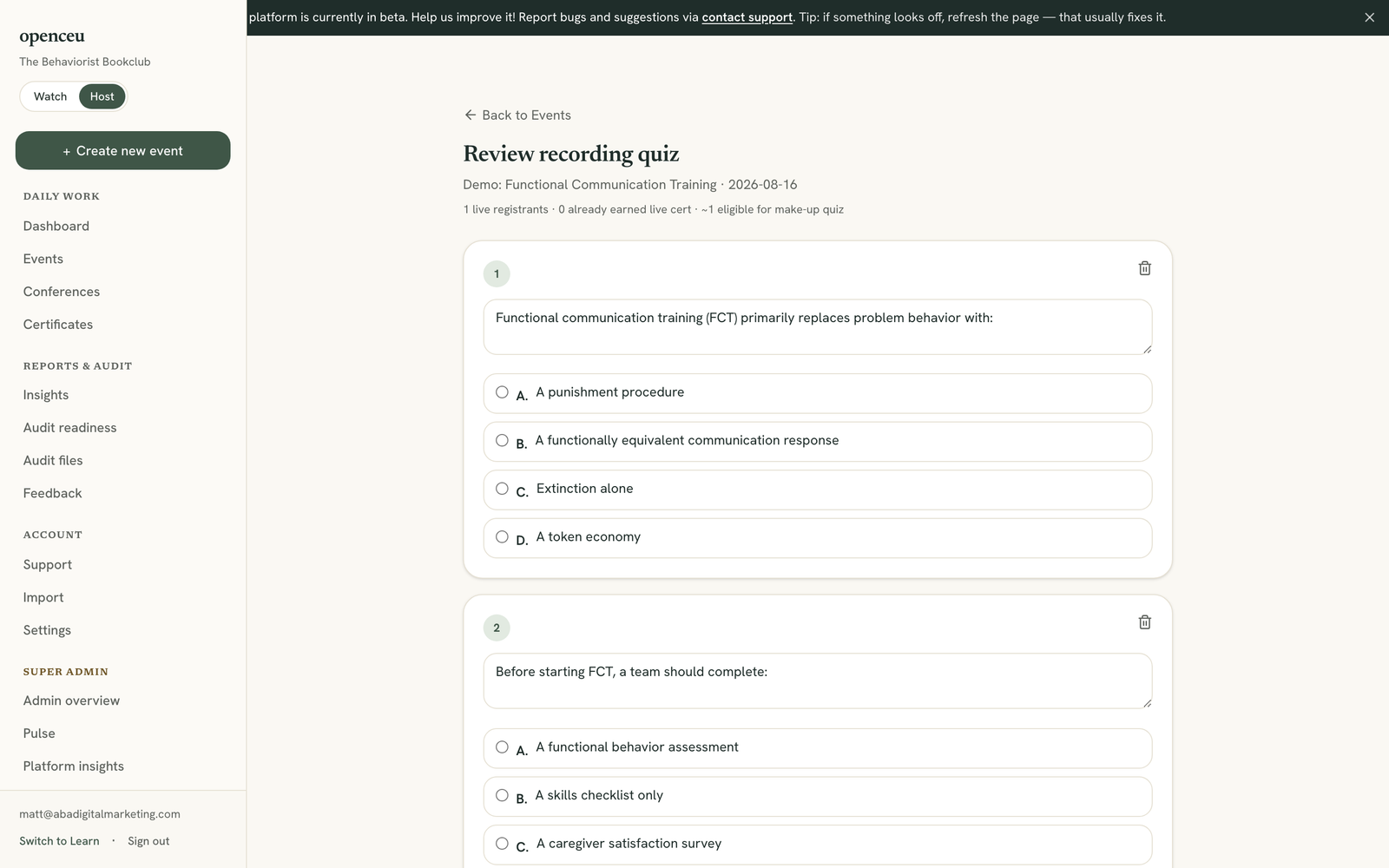
Check each question
Read each question and its four choices. The filled-in circle next to an answer shows which one OpenCEU marked correct.
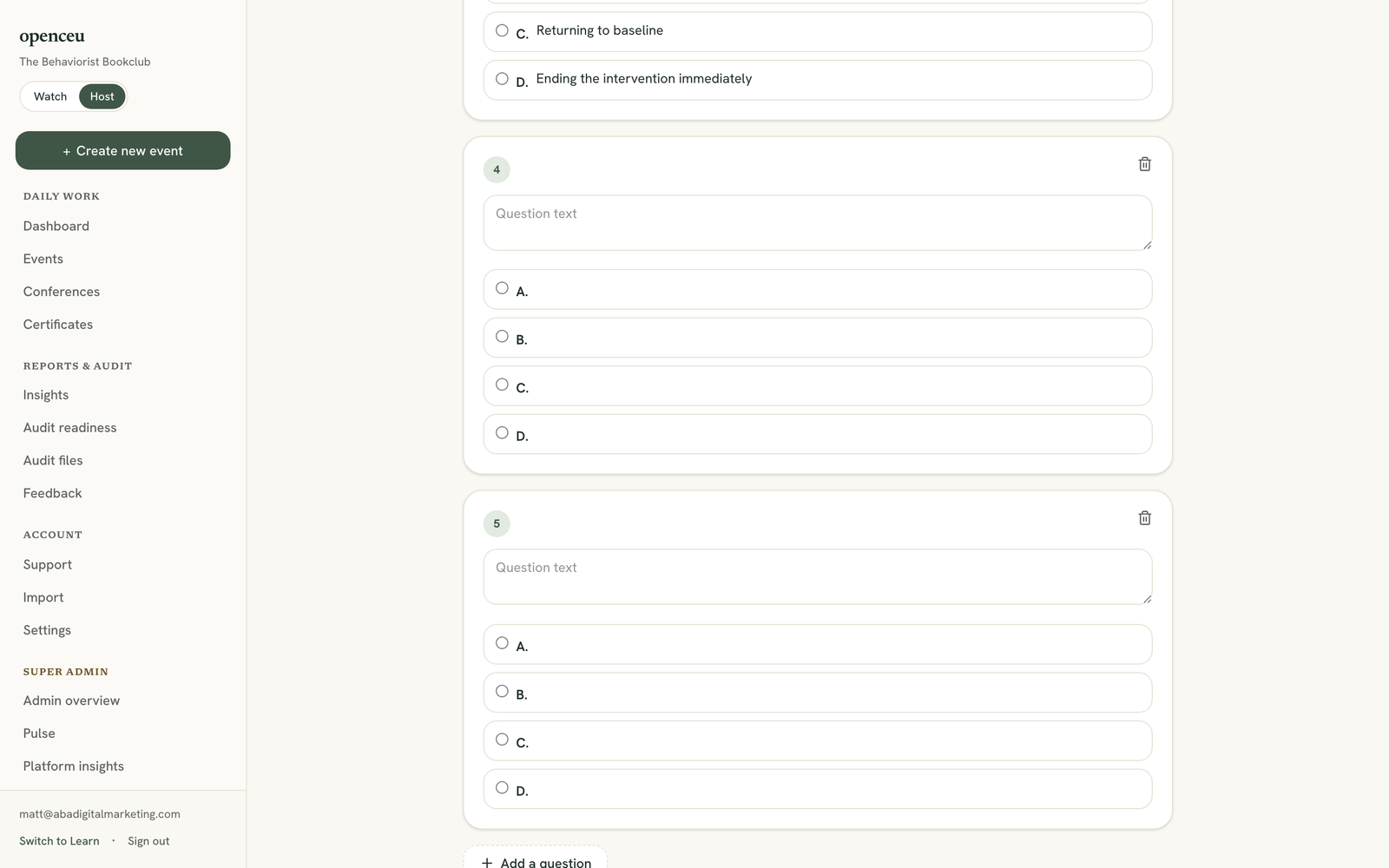
Edit or delete a question
Click inside any question or answer box to change the wording. Click the trash icon to remove a question you do not want.
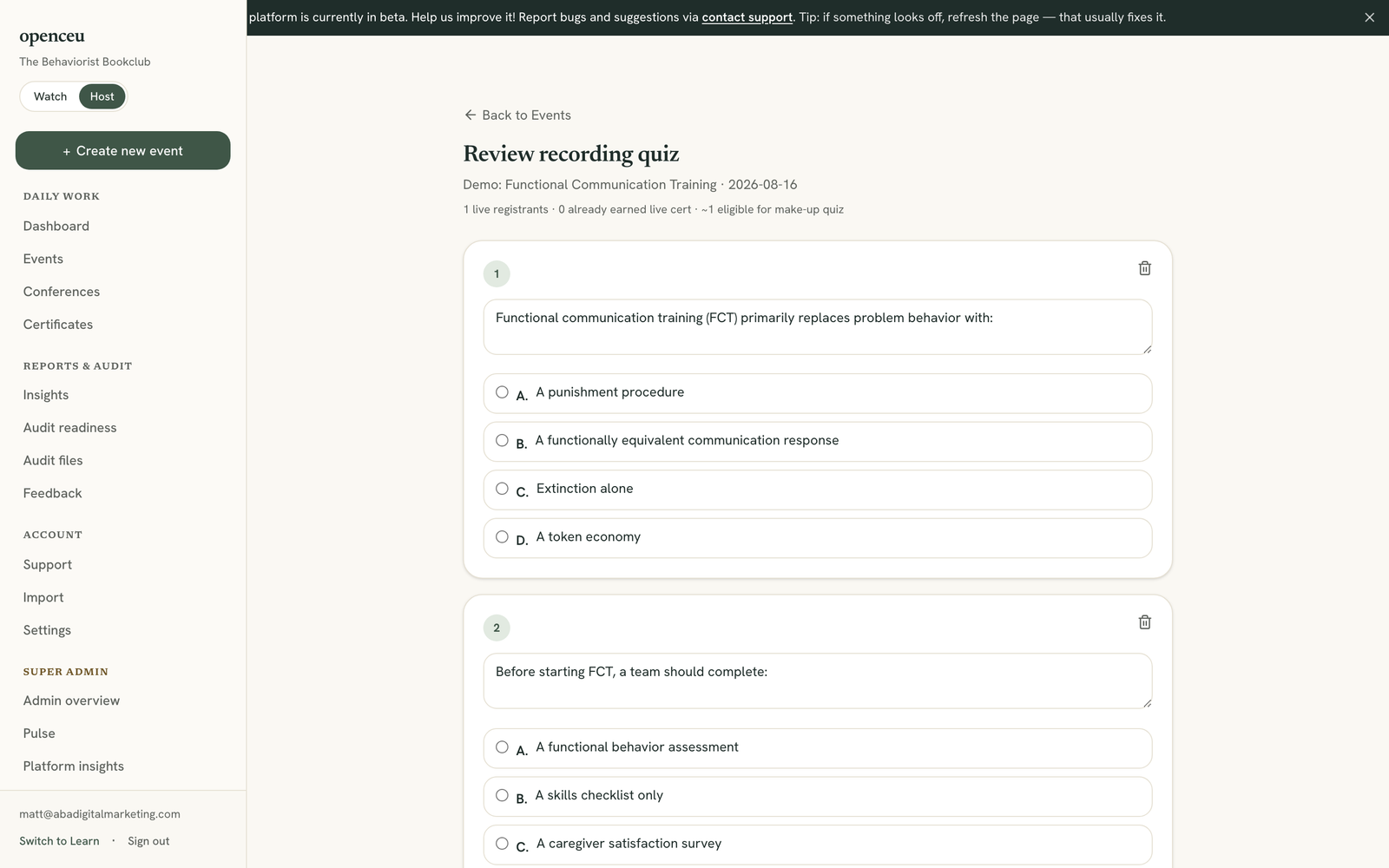
Add a question if you need one
Click Add a question to add a blank question to the list.
Two ways to edit quiz questions
Still stuck? Contact support and we'll help.