Turn on the publish setting so your recording shows up in the course library. Anyone can watch it and earn credit.
Live-only events have no replay
If the event is set to Live only — no replay, there is nothing to publish: the review screen and Publish buttons are turned off. You can still download the video from the event’s Recording page. To publish a replay, click Turn off Live only there first.
1
Finish reviewing the quiz first
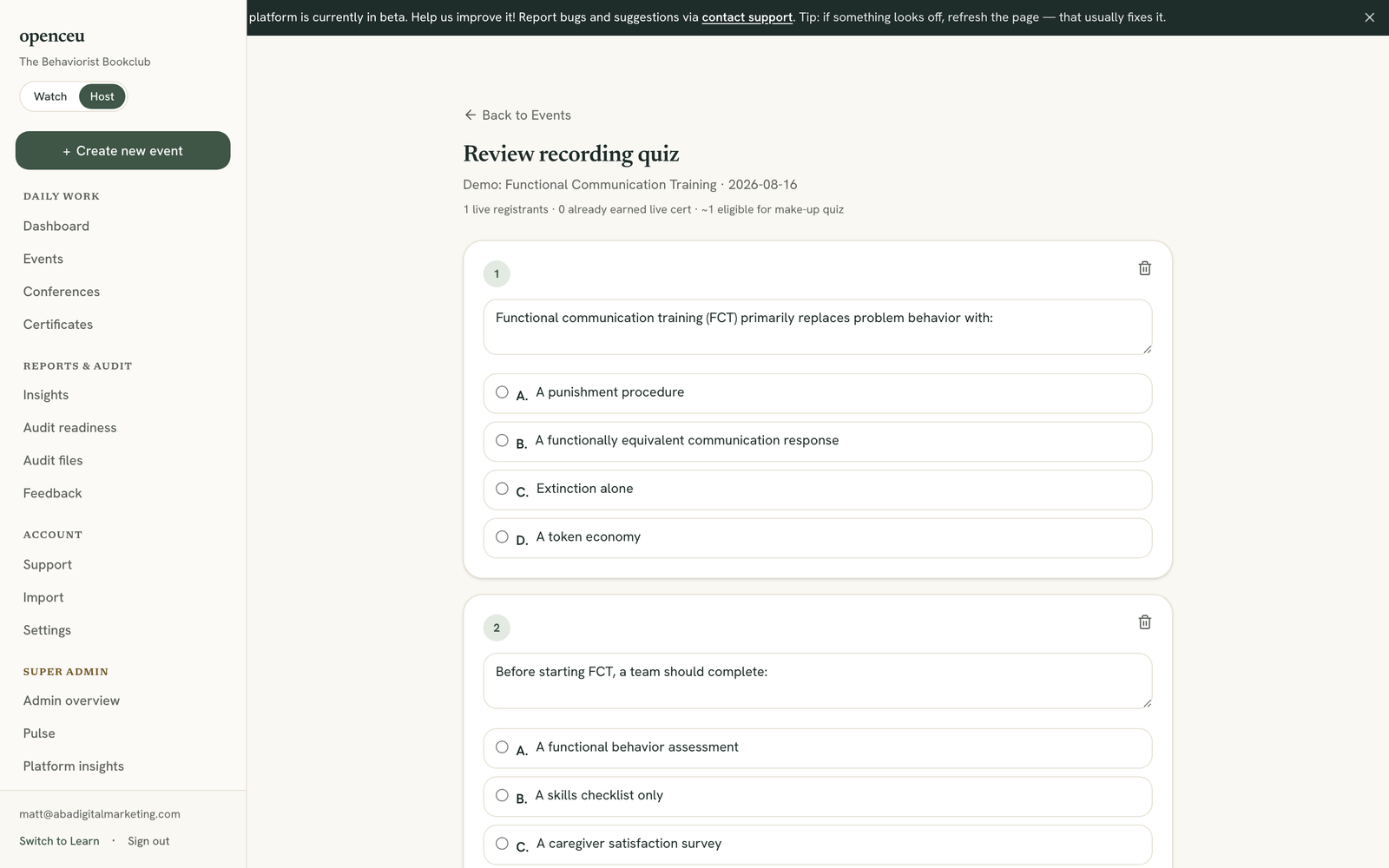
Open your event on the Recordings page. Read through the drafted questions. See Review the drafted quiz if you have not checked them yet.
Fix any question you are not happy with before you publish.
2
Turn on the library checkbox
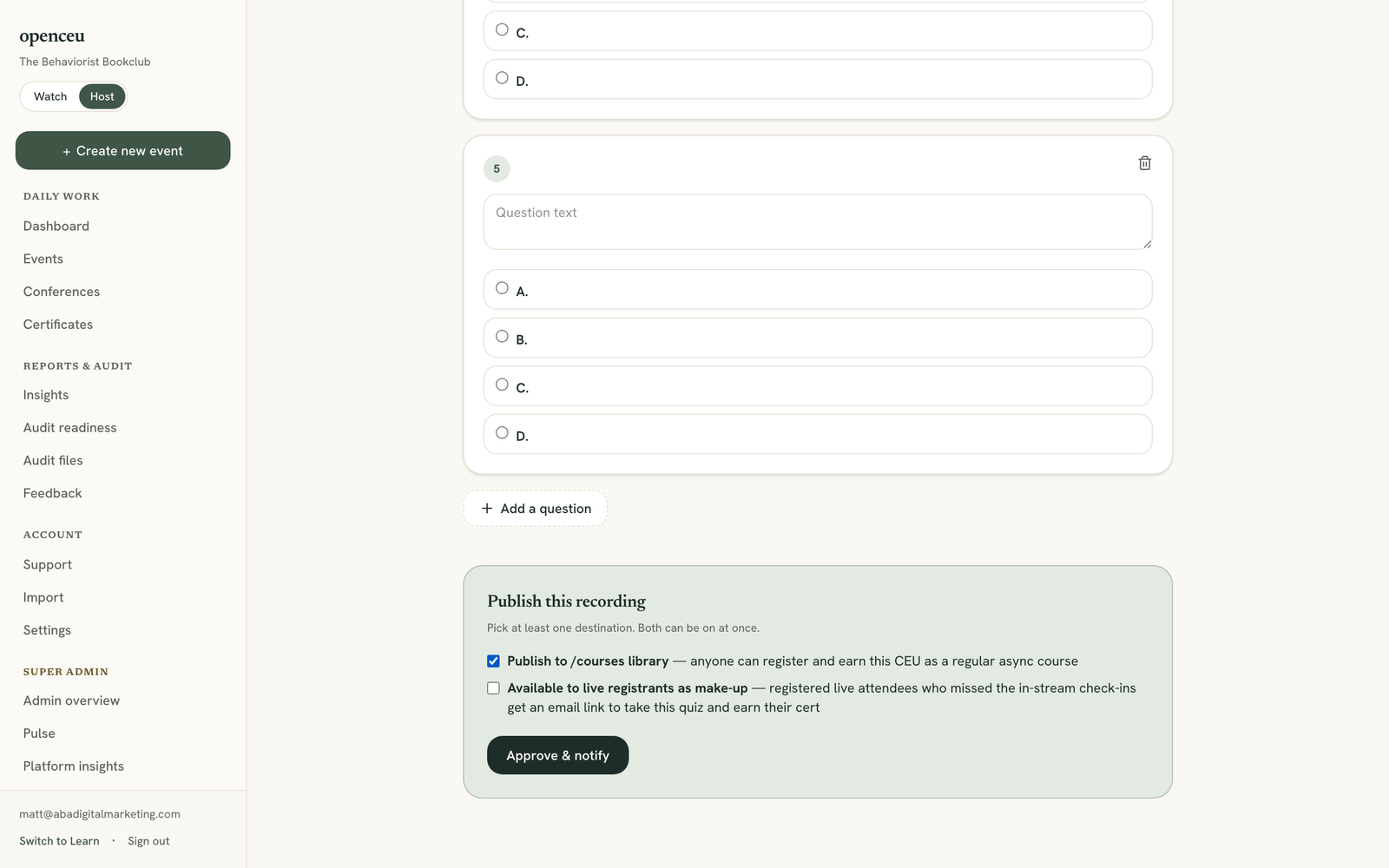
Scroll down to Publish this recording. Check the box labeled Publish to /courses library.
Pick at least one box
You must check this box, the make-up box, or both before OpenCEU lets you approve. See Offer a make-up quiz.
This makes your recording a regular async course anyone can register for.
3
Click Approve & notify
Click Approve & notify. OpenCEU publishes your recording right away.
If you already approved once, the button says Re-approve & notify.
4
Copy your course link
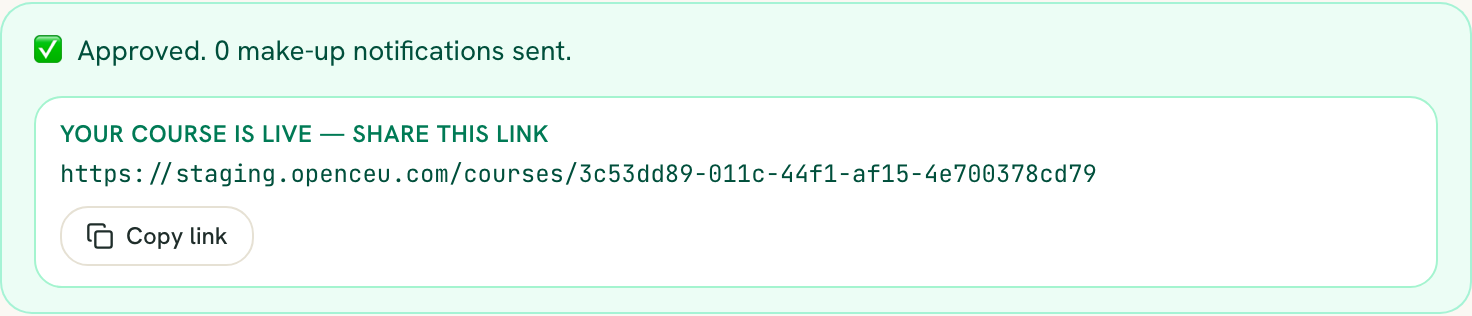
After you approve, OpenCEU shows your course link under “Your course is live.” Click the copy button and share it anywhere.
Anyone with this link can register and start earning credit.