Preview your certificate
Before anyone earns a CEU, look at the exact certificate they will get. It uses your real org details with sample participant info.
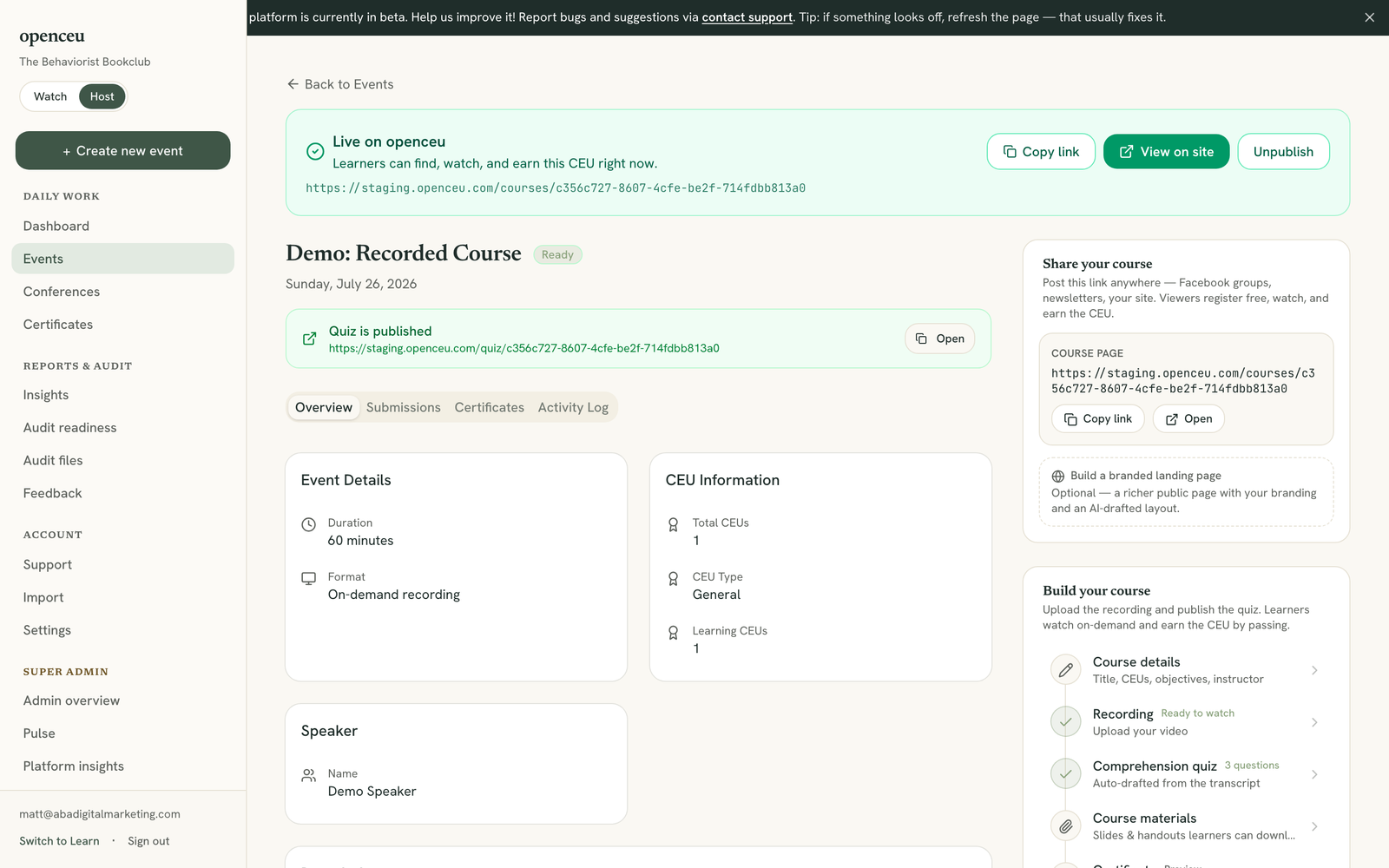
Open Certificate from your event
Open your event, then click Certificate in the checklist. This opens a preview rendered with the same generator that makes real certificates.
Look at the rendered certificate
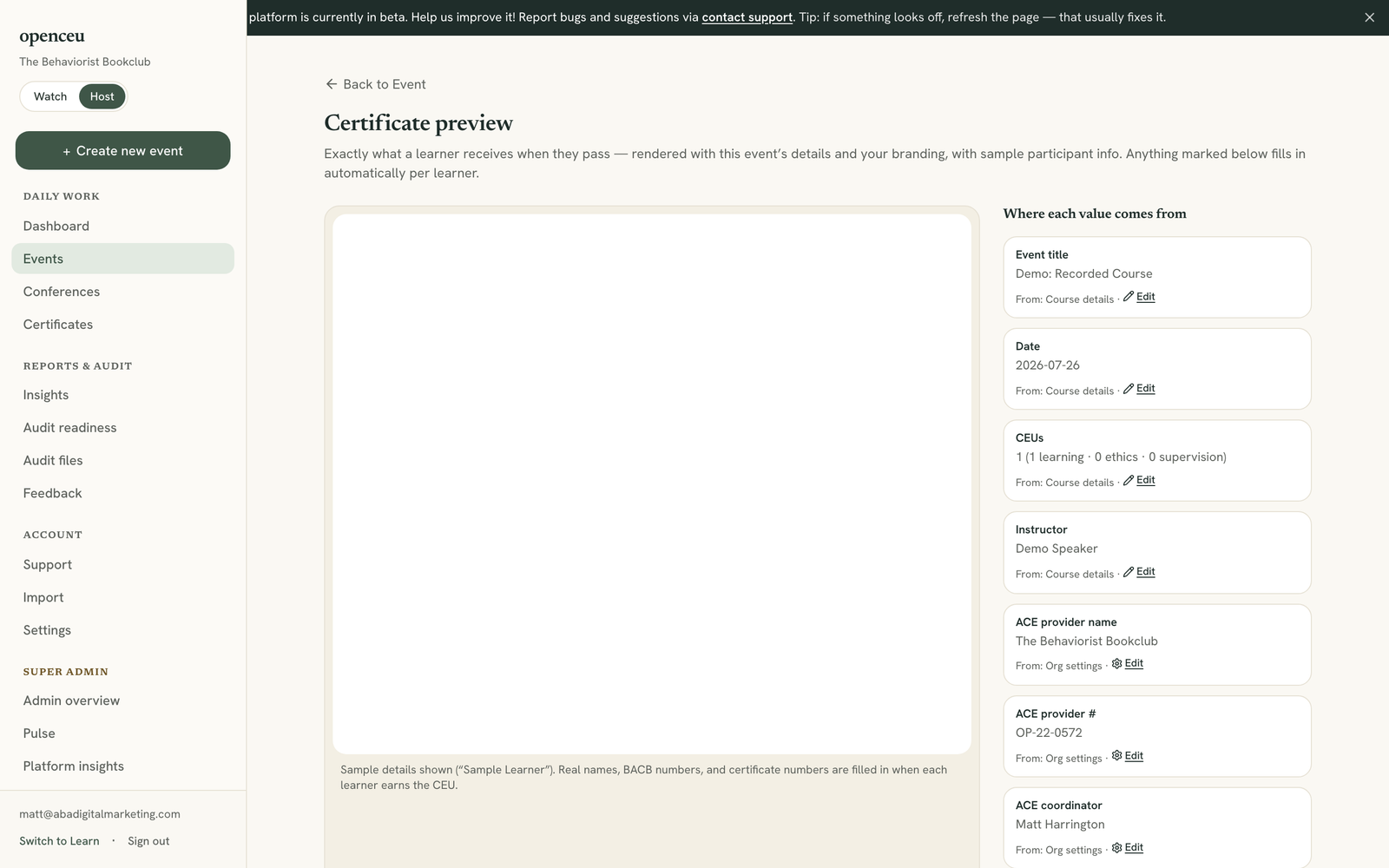
For a CEU event, you see the certificate a BCBA or BCaBA receives. For an RBT PD event, you see the official BACB “RBT Professional Development: ACE Event” form. Both show Sample Learner in place of a real name.
Check where each value comes from
The sidebar lists every field on the certificate: title, date, CEUs or PDUs, instructor, your ACE provider name and number, your coordinator, and your signature. Anything tagged Missing in amber will print blank on a real certificate.
Fix anything missing
Click Edit next to any field. Event details (title, date, CEUs, instructor) open your event’s edit page. Organization details (ACE provider name and number, coordinator, signature) open Settings.
Participant name and certificate number
Still stuck? Contact support and we'll help.