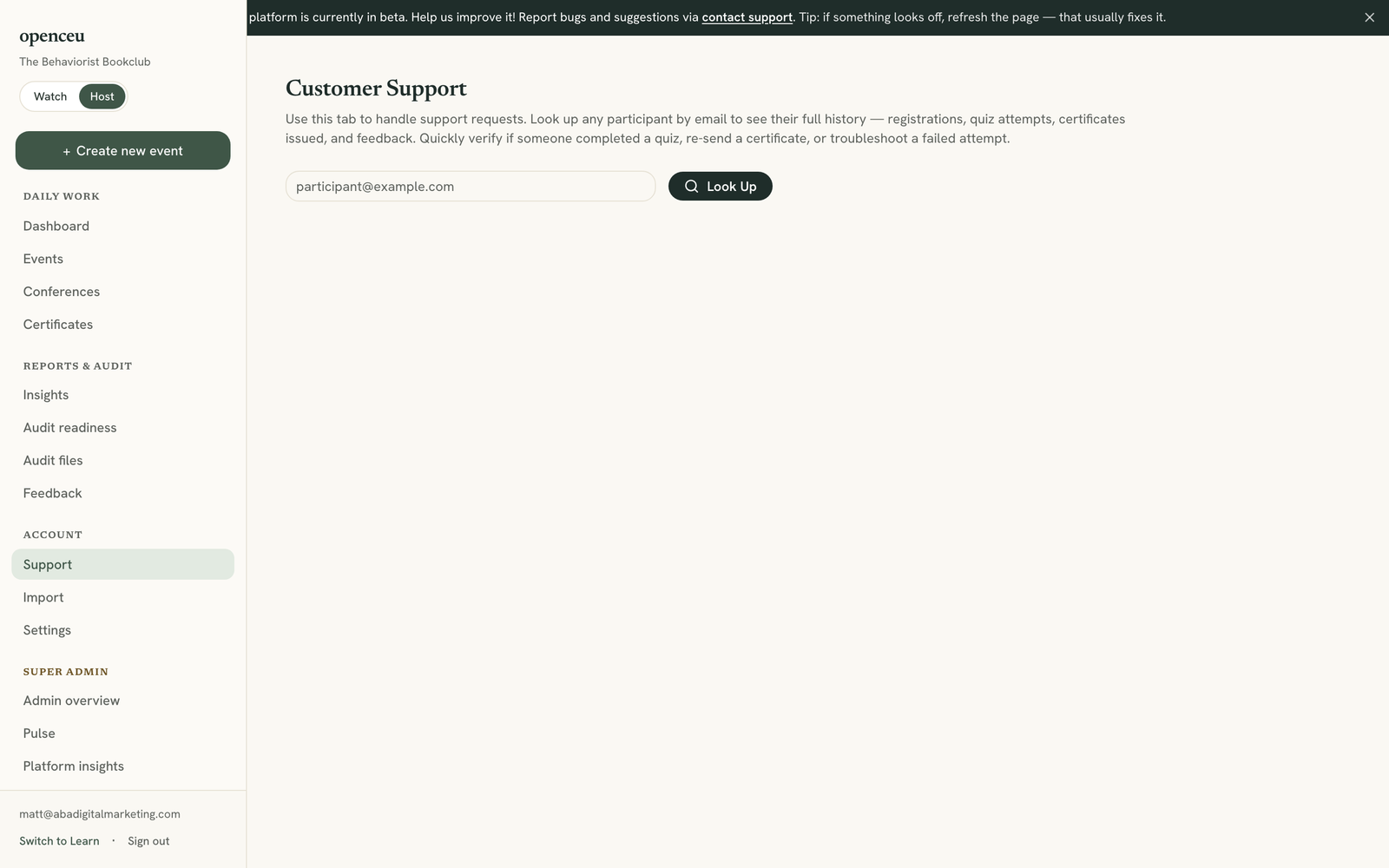
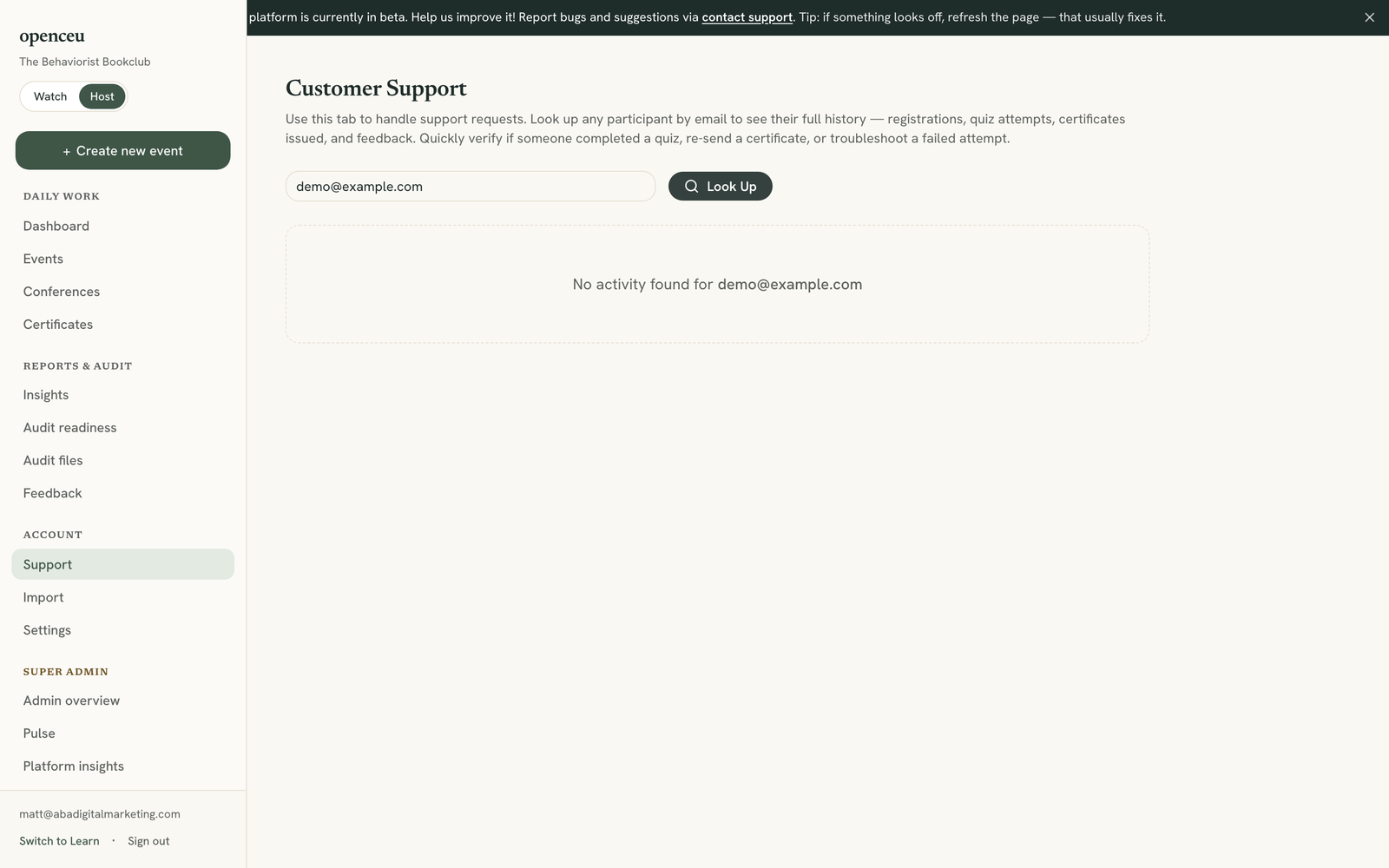
Search for one person to see everything they have done across your events, in one timeline.
1
Open Support
In your side menu, under Account, click Support.
This tool is built for looking up one attendee at a time.
2
Search their email
Type the person's email in the box. Click Look Up.
No results?
If nothing shows up, double check the spelling of their email. The search does not match partial names or emails.
This search only works with an exact email match.
3
Read their timeline
You will see a header with their name, certificate count, quiz attempts, and registrations. Below it, a timeline lists everything in order, newest first: registrations, quiz attempts, certificates, feedback, and activity like starting a video or downloading a certificate.