Import past events
Import brings an event you already ran somewhere else into OpenCEU, without going through the normal create-event flow.
This imports one event at a time
Open Import
Click Import in your sidebar.
Fill in the event details
Add the title, date, and time. Add the speaker’s name and BACB number, the credit count and type, and the modality (live, recording only, or live plus recording).
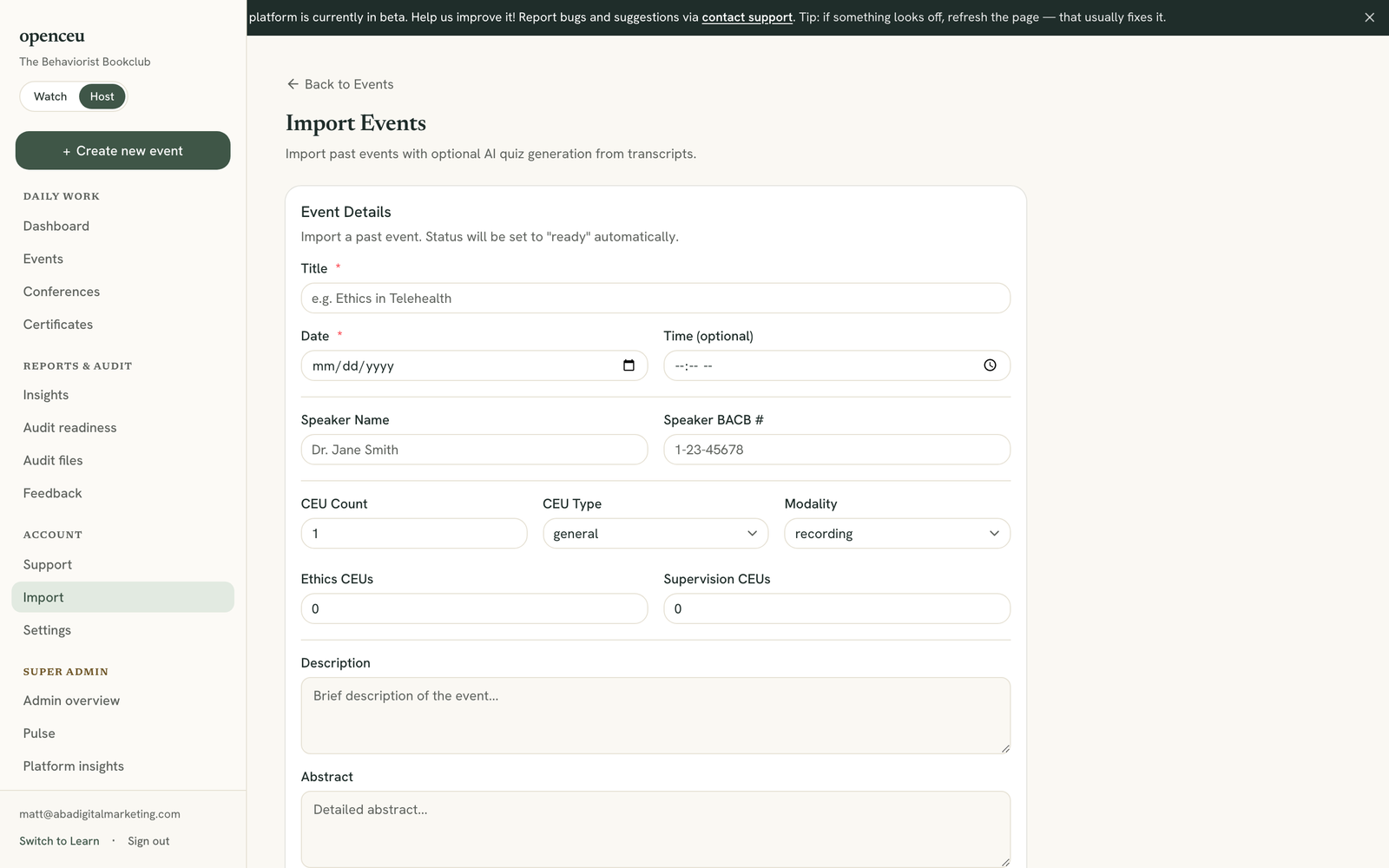
Add the rest of the details
Fill in a description, an abstract, and learning objectives, one per line. Imported events are set to ready status automatically.
Paste a transcript to auto-generate a quiz
If you have a transcript of the original presentation, paste it into the Transcript field before importing. Once the event is created, OpenCEU generates quiz questions from the transcript for you to review.
Import the event
Click Import Event. If you included a transcript, wait while the quiz questions generate, roughly 30 to 60 seconds.
Review the generated questions
Check each box next to the questions you want to keep, or use Select all. Click Save Questions & Publish Quiz to add them and publish the quiz at once.
Finish setup like any other event
From here, treat the imported event like any other. Use View Event to add a recording, materials, or make further edits, or Manage Quiz to keep editing questions. See Upload a recording if the imported event needs a video attached.
Still stuck? Contact support and we'll help.