Take a tour of your host dashboard
Your dashboard at /host is home base. Here is what each part shows and where to click next.
Watch the onboarding video
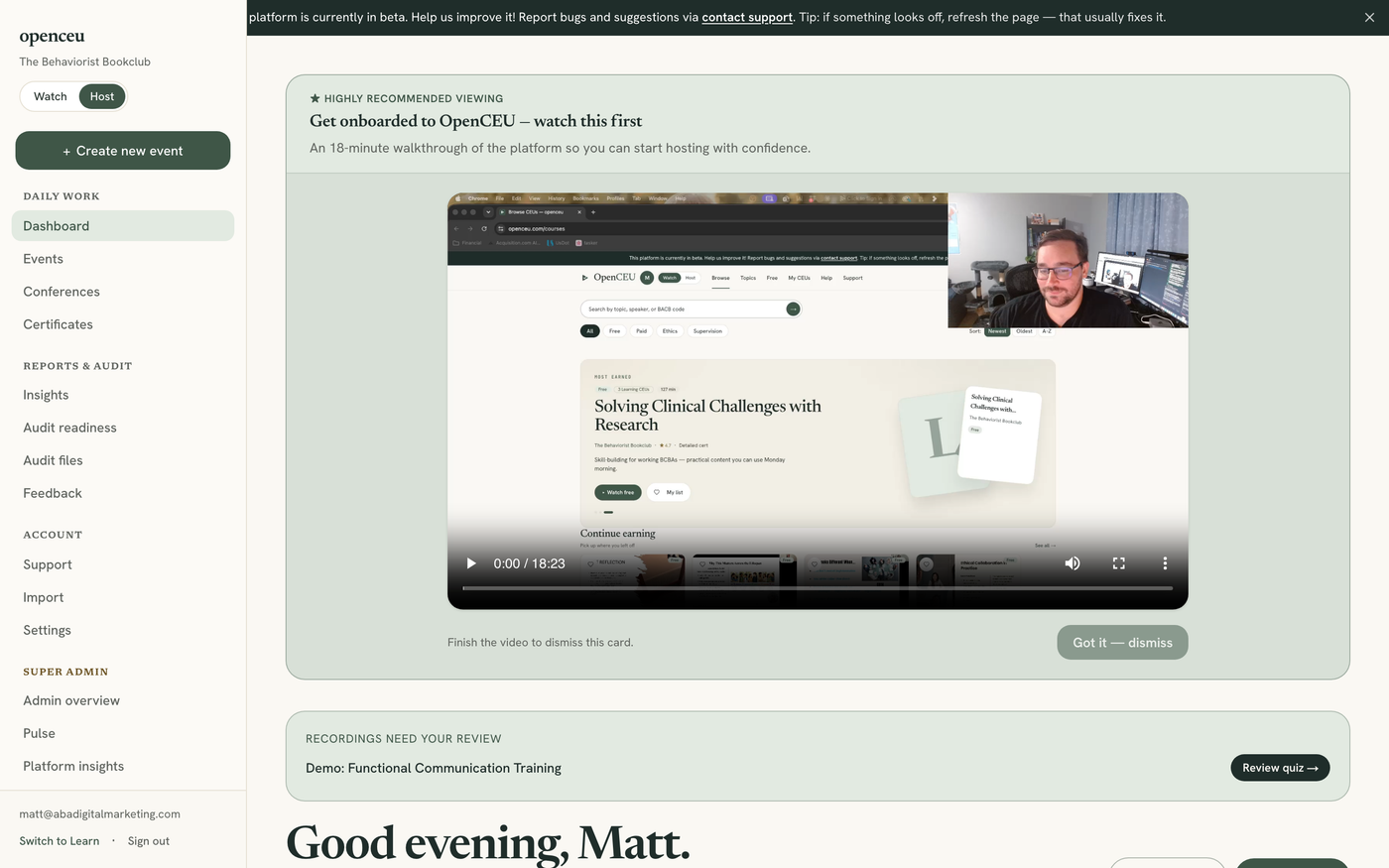
The first time you log in, you will see a card titled Get onboarded to OpenCEU. It is an 18-minute walkthrough of the platform. Watch it to the end, then click Got it, dismiss. The dismiss button unlocks only after you finish the video.
A second card, How to host a live event on OpenCEU, appears right below it with an 11-minute walkthrough of running a live event: Live Settings, approved speakers, and the green room. It dismisses the same way, independently of the first card.
Check your stats
If you have hosted before, you will see four numbers across the top: quizzes published, certs this month, BCBAs certified, and quiz pass rate. If you sell recordings, a sales panel with units sold and net sales appears below.
New host?
Look at Up next and Recent activity
Up next lists your soonest scheduled events. Recent activity shows the last certificates issued. Click either to jump straight to that event.
Find your way around the sidebar
The left sidebar has three groups:
- Daily work: Dashboard, Events, Certificates
- Reports & audit: Insights, Audit readiness, Audit files, Feedback
- Account: Support, Import, Settings
The Watch | Host toggle at the top switches you between the learner side of OpenCEU and your host dashboard.
Start your first event
Click + New event at the top of the dashboard, or the same button in the sidebar, any time you are ready.
Still stuck? Contact support and we'll help.