Edit the article on your course page
When you publish a recording, OpenCEU writes an article from its transcript and shows it below your course description. It helps people find your course on Google. You can turn it off, edit it, or go back to the original at any time.
Know when the article is created
The article is created after you publish your recording. OpenCEU turns the transcript into a written summary with key takeaways, sections, an FAQ, and a short speaker bio. Quotes are pulled word for word from your recording.
It doesn’t appear the moment you publish. Until it is ready, the card in the next step says your article will appear after your recording is published. Check back later. New articles are visible on your course page by default.
Review it before you rely on it
Show or hide the article
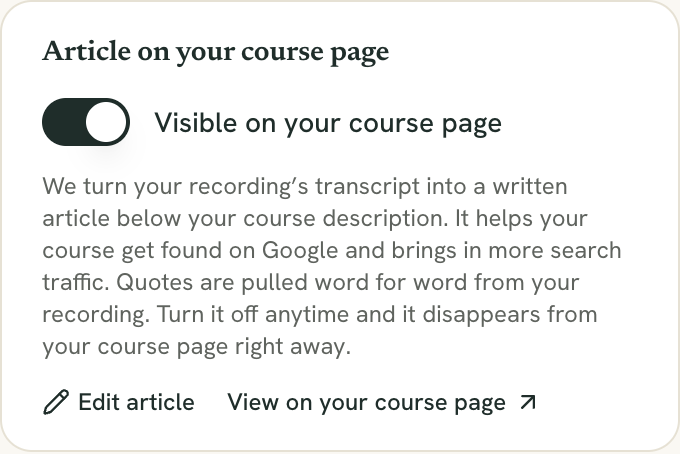
Open your event. In the right-hand column, find the card Article on your course page. The same card is on the event’s SEO page.
Use the switch labeled Show the article on your course page. The text next to it reads Visible on your course page or Hidden from your course page. Turning it off removes the article from your course page right away. Nothing is deleted, so you can turn it back on later.
The card also has View on your course page, which opens your course page at the article, and Edit article.
Edit the article
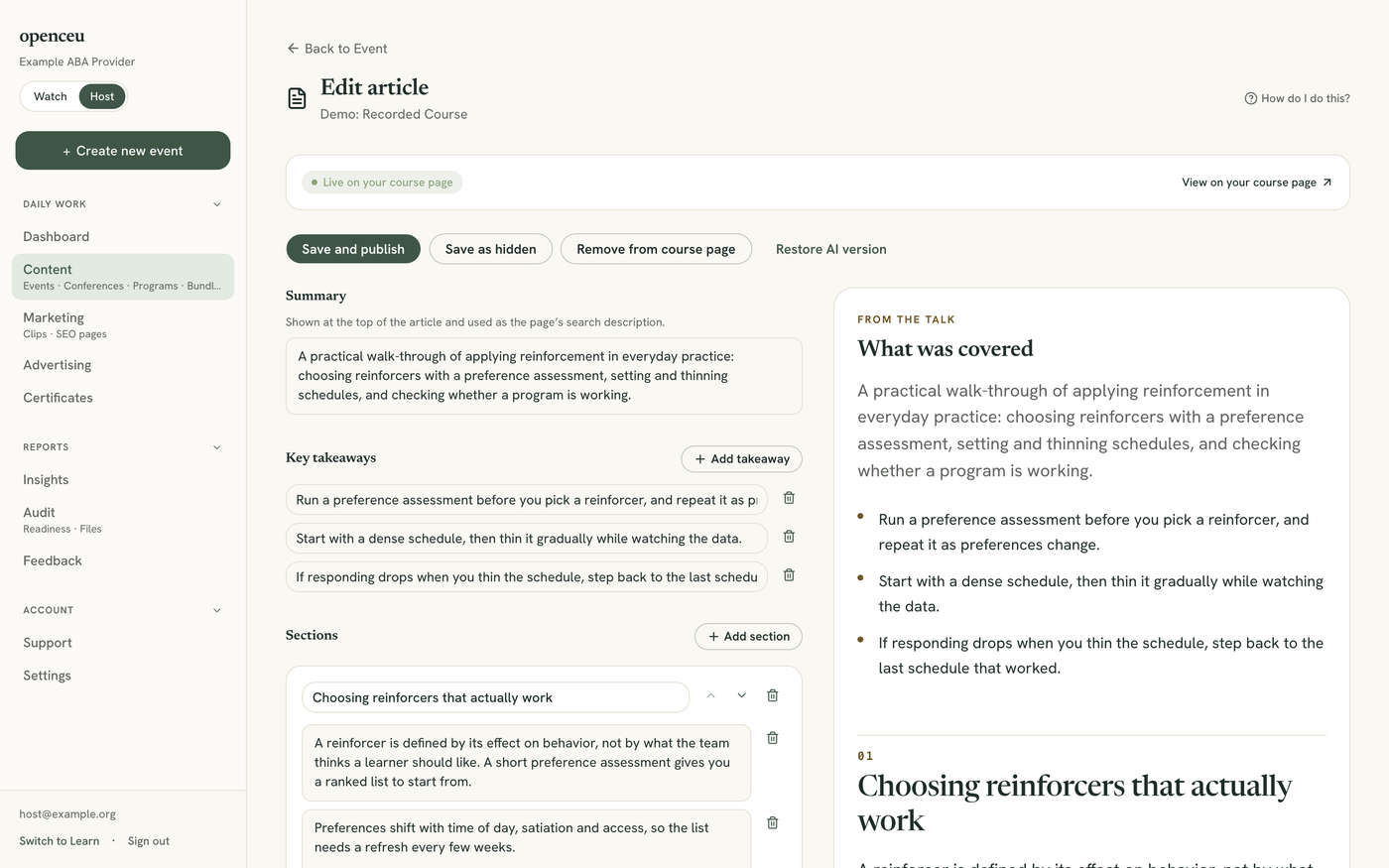
Click Edit article. The editor is a plain form with a live preview next to it, so you see what your course page will show. On a phone, use the Edit and Preview tabs.
You can change each part of the article:
- Summary: shown at the top of the article and used as the page’s search description.
- Key takeaways: one sentence each. Use Add takeaway to add more.
- Sections: each has a heading and one or more paragraphs. Use Add section and Add paragraph, and the arrows to reorder sections. A section can also have an optional Quote and Speaker. Keep quotes to your exact words from the recording.
- FAQ: questions and answers. Use Add question.
- About the speaker: a short bio.
The page warns you if you leave with Unsaved changes.
Save, publish, or hide
The buttons at the top and bottom of the editor do the following:
- Save and publish: saves your edits and makes the article visible on your course page. Publishing needs at least one section with a heading and a paragraph.
- Save as hidden: saves your edits but keeps the article off your course page.
- Remove from course page: hides the article after you confirm. It is hidden, not deleted, and your edits stay.
A label at the top shows the current state: Live on your course page or Hidden.

Go back to the AI version
Click Restore AI version to throw away your edits. After you confirm, everything in the editor is replaced with what the AI first wrote, and the page reloads. Restoring doesn’t change whether the article is visible, so a hidden article stays hidden.
OpenCEU keeps the original when you first save an edit. If you have never saved changes, there is nothing to go back to.
To get more people to your course page, see Promote your course.
Still stuck? Contact support and we'll help.