Create discount and comp codes
A code takes a percent off a paid ticket or recording. A code set to 100% off makes registration free, which is how you comp staff, guests, or speakers. You create codes from the event or conference, and learners type them in when they register.
Codes need a price
Open the Coupons page
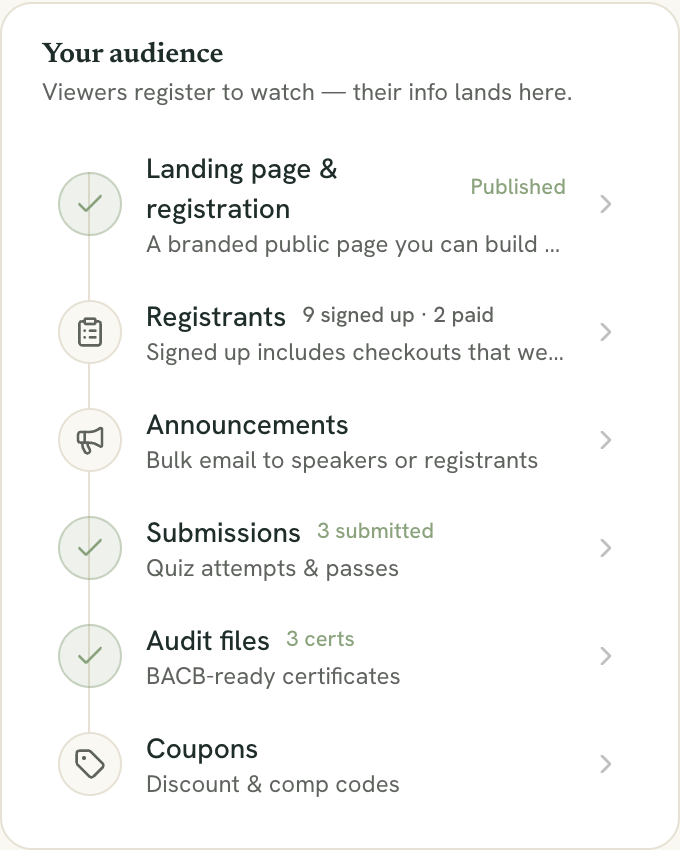
For an event or recording, open the event page and click Coupons (“Discount & comp codes”). The entry only appears after you set a live ticket price or a recording price.
For a conference, open the conference’s manage page and click Coupons. See Build a conference.
Create a code
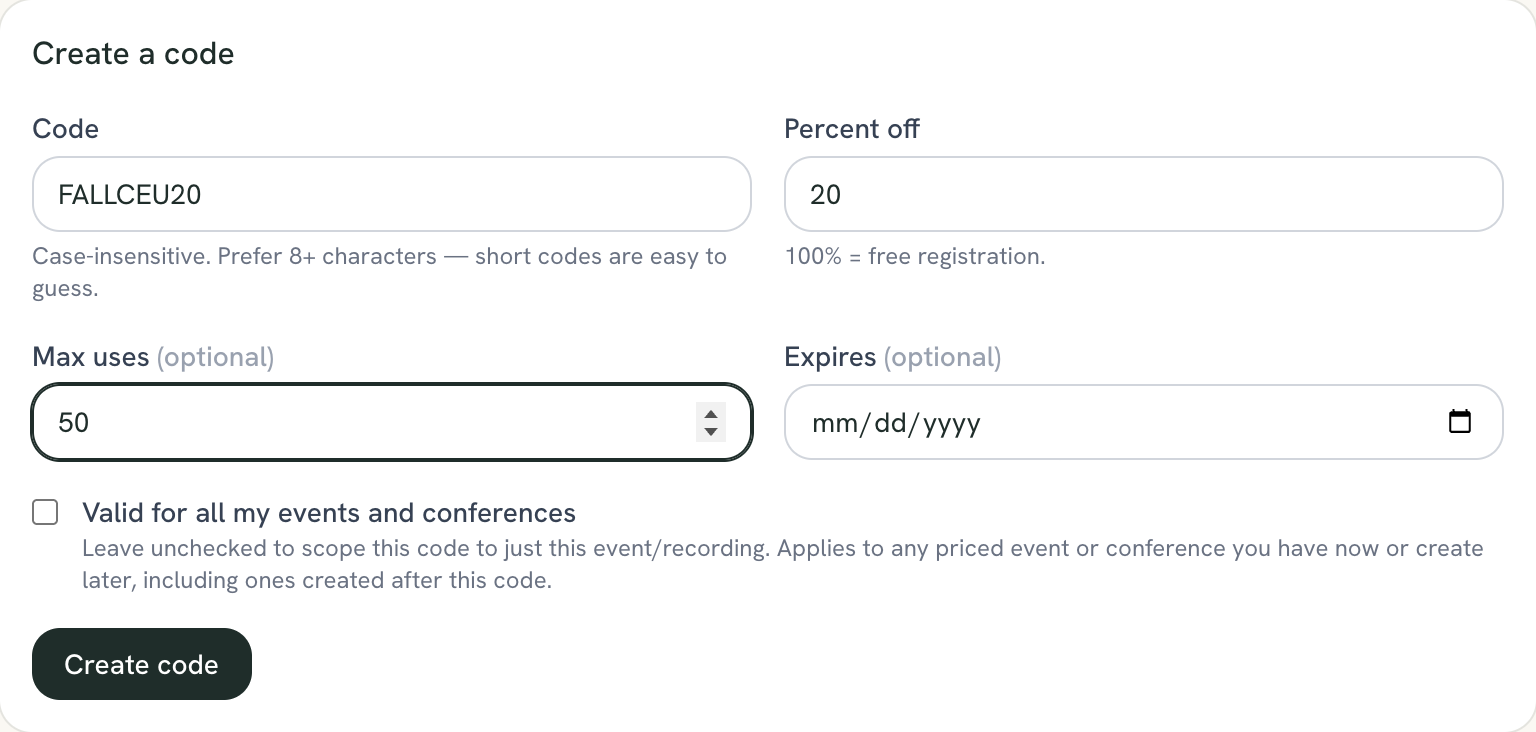
Under Create a code, fill in:
- Code. Codes are not case-sensitive, and spaces at the start or end are ignored. Learners must otherwise match the code exactly, so partial codes and wildcards never work. Use 8 or more characters, since short codes are easy to guess. A code longer than 64 characters is always refused, so keep it shorter.
- Percent off, from 1 to 100. 100% means free registration.
- Max uses (optional). Leave it blank for unlimited.
- Expires (optional). A date after which the code stops working.
- Valid for all my events and conferences. Leave this unchecked to limit the code to this event, recording, or conference. Check it to make the code work on every priced event or conference your organization has now or creates later.
Click Create code. You can’t reuse a code name you already have.
Know the limits
- Each person can use a code once per event or conference. An organization-wide code still works for the same person on a different event.
- A code that is inactive, expired, past its Max uses, or meant for a different event or conference is refused. The learner sees “Invalid or expired code” for all of these.
- A discount below 100% that would leave the price under $0.50 is refused with “This code can’t be applied to this item.”
- On a conference, the VIP add-on is never discounted by a code.
How learners enter a code
On a paid registration form, learners see a Have a coupon code? box. They type the code under Enter code and click Apply. The box confirms with “Code applied” and the new price, or “Code applied — Free” for a 100% code. On a recording page, some views show a Have a code? button that opens the same box.
A 100% code never goes through payment. The learner is registered without a charge.
Turn a code off and see redemptions
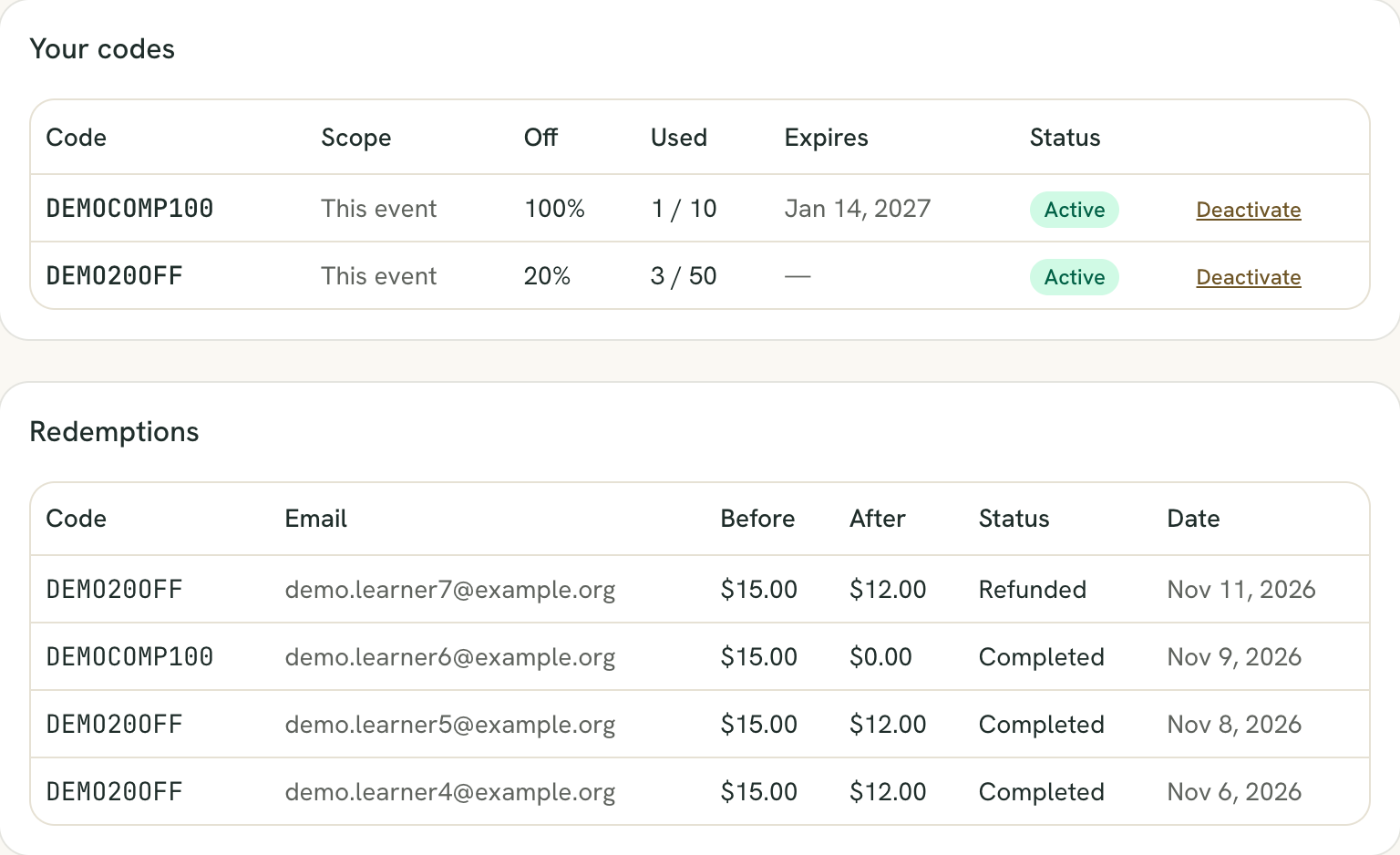
Your codes lists every code with its scope (This event, This conference, or All my events & conferences), the percent off, how many times it was used out of its max, its expiry, and its status. Click Deactivate to stop a code and Activate to turn it back on. Codes are never deleted.
Redemptions shows the most recent 100 uses: code, email, the price Before and After, status, and date. A redemption can be pending, completed, released, or refunded. A pending one is a checkout that isn’t finished yet. A refunded sale still counts against the code’s Max uses. Free comp registrations also show in the Comped number on your dashboard, outside net sales.
Give each conference speaker their own code
Speaker codes let you see which speaker brought in registrations. On a paid conference’s manage page, open the Speaker codes card and click Set up speaker codes (it reads Manage speaker codes once any exist).
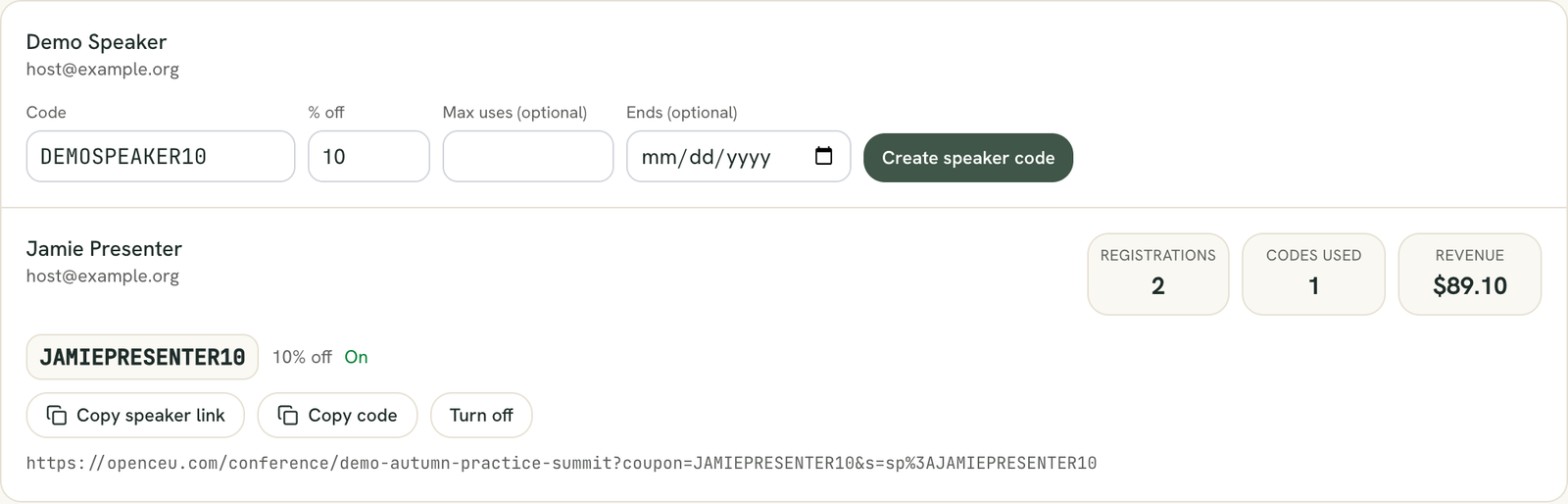
Each speaker on your sessions is listed. Under a speaker, the form has a Code that is filled in for you, a % off that starts at 10, and optional Max uses and Ends. Codes can use letters, numbers, dashes, and underscores, 3 to 30 characters. Click Create speaker code. A speaker can have one code.
Use Copy speaker link or Copy code to send it to the speaker. The link opens your conference page with the code filled in. A registration counts for the speaker when it used their code or came through their link. Each speaker shows Registrations, Codes used, and Revenue. Turn off and Turn on pause a code. A speaker removed from every session stays listed as No longer on a session, and their sales still count.
Speaker codes are off on a test conference and on a free one. The conference registrants export has a Speaker Code column.
Still stuck? Contact support and we'll help.