Add course materials
Attach slides, handouts, or any file attendees should be able to download from your event page.
1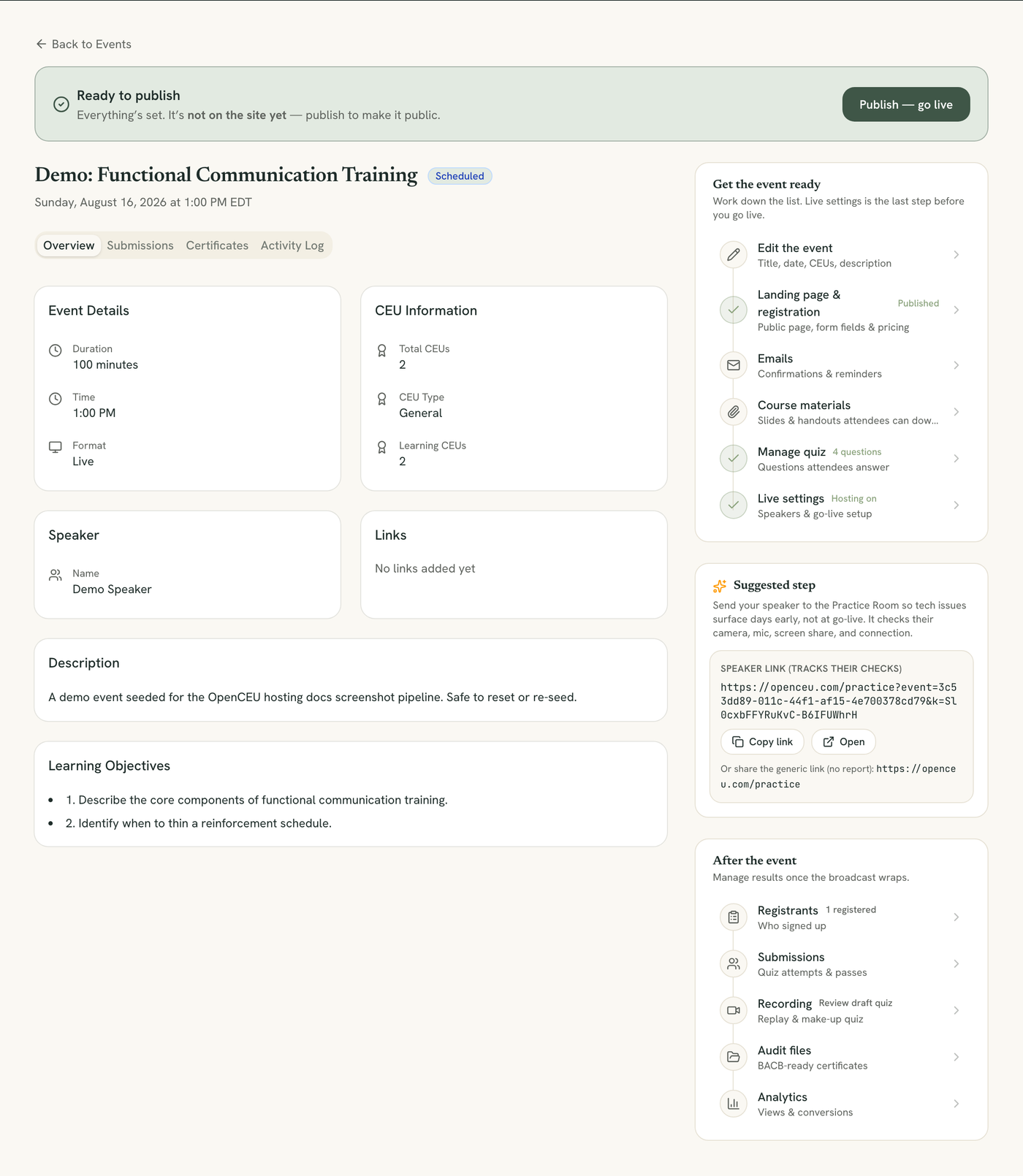
It sits between Emails and Manage quiz.
Open Course materials from your checklist
Open your event, then click Course materials in the checklist.
2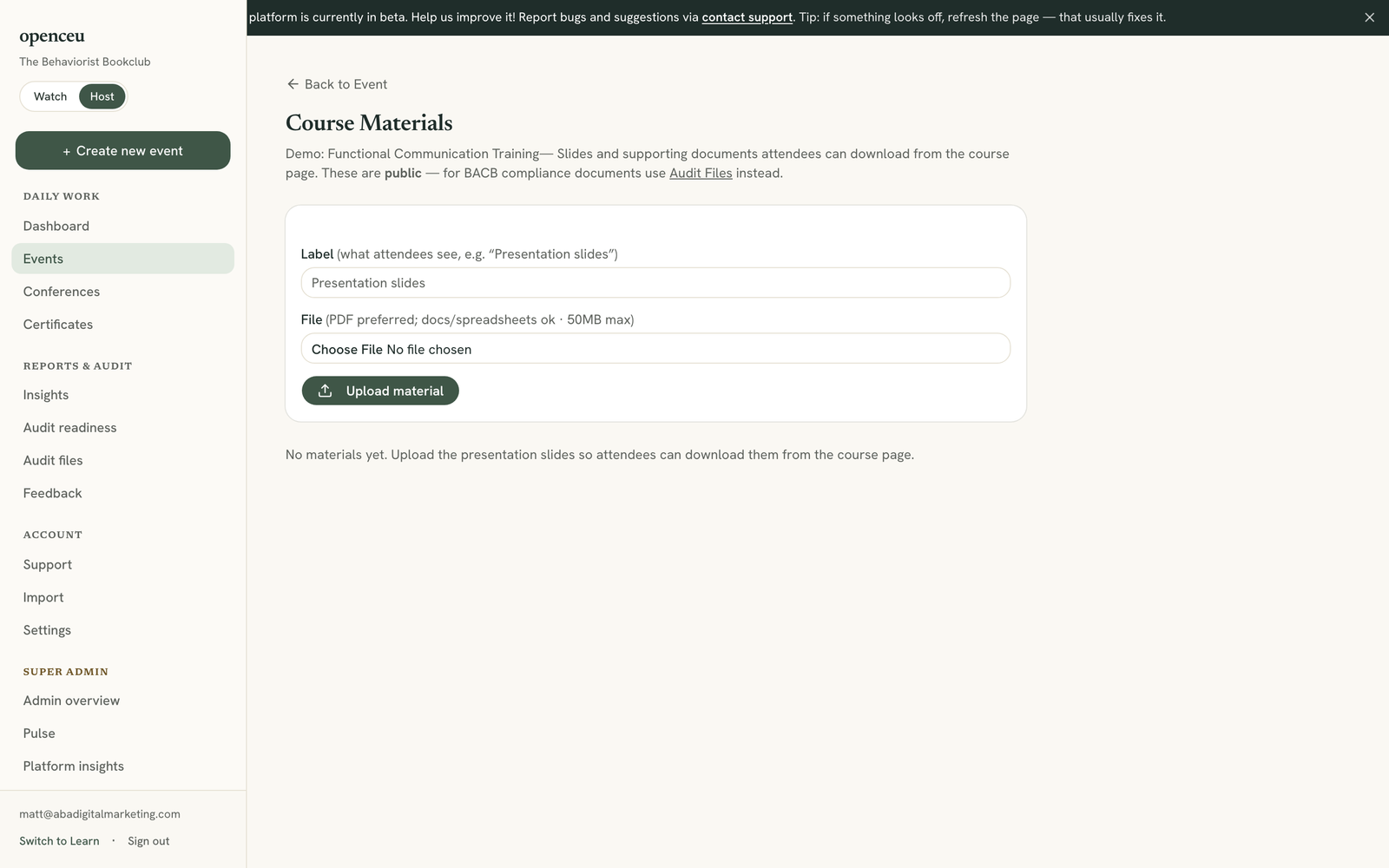
Attendees see this label, not the file name.
Label your file
Type a short label attendees will see, like Presentation slides.
3
Choose a file and upload
Choose a PDF, Word doc, PowerPoint, spreadsheet, or text file, up to 50 MB. PDF is preferred. Click Upload material.
Where attendees see it
Uploaded materials show up on the course page for anyone who registers, both before and after the event.
4
Delete a material, if needed
Click the trash icon next to any uploaded file and confirm. This permanently removes the file, and cannot be undone.
Still stuck? Contact support and we'll help.