The Host Community
A private space for OpenCEU hosts. Read news from the OpenCEU team, trade ideas with other hosts, and watch short training videos.
Who is in it
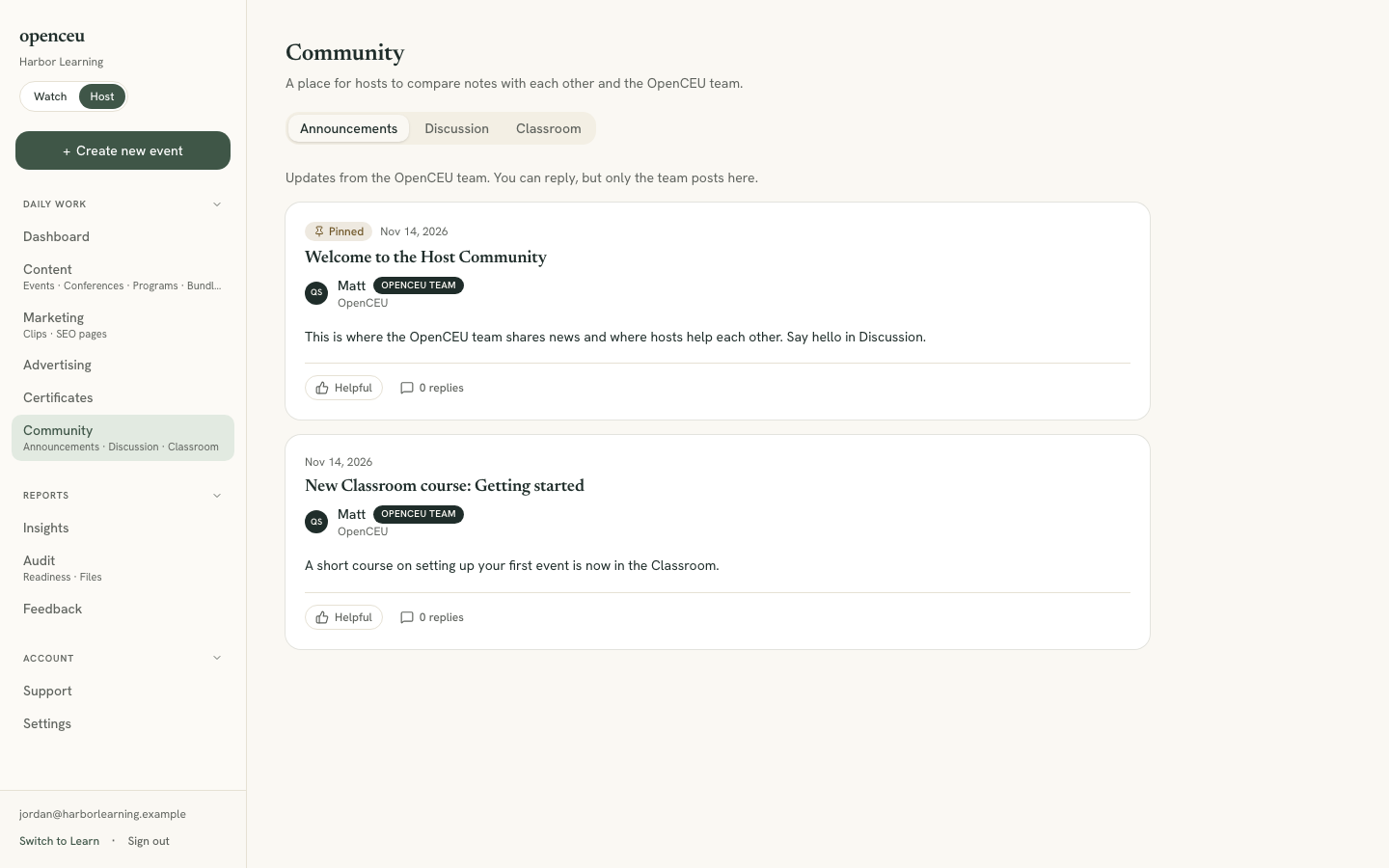
Every approved host. You find it as Community in your host sidebar, with three tabs: Announcements, Discussion and Classroom. Other hosts see your name and your organization next to what you post.
Announcements
News and changes from the OpenCEU team. You can reply and mark a post helpful, but you cannot start an announcement. Announcements you have not seen get a dot, and the tab shows a count, until you open the tab.
Discussion
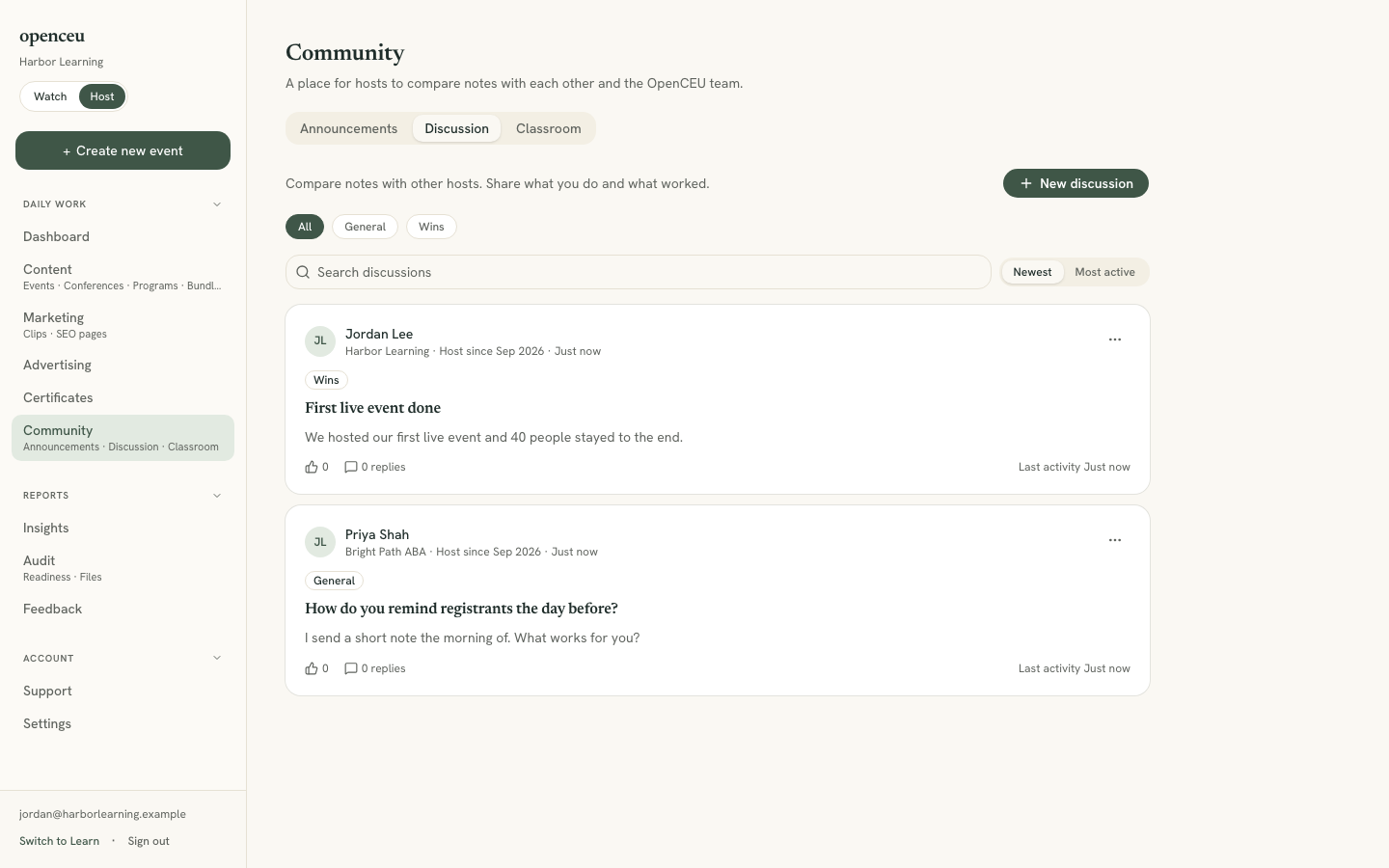
Click New discussion and choose a category. General is for questions and ideas. Wins is for things that went well.
A new post shows to you right away, marked Waiting for approval, and other hosts see it once the OpenCEU team approves it. You will get a notification when it goes live.
Replies, attachments, and your own posts
Open a post to reply. You can attach up to 5 files to a post and 3 to a reply: images (png, jpg, webp, gif), pdf, docx, xlsx, pptx, csv or txt, up to 10 MB each. Files are private to the community.
You can edit or delete your own posts and replies from the ... menu. On someone else’s post, the same menu has Report. Use it if a post breaks the community rules and the OpenCEU team will take a look.
Problems go to Support, not the community
Do not post account, billing, certificate or event problems in Discussion. Other hosts cannot see your account, and the OpenCEU team answers faster through Support. Open a Support request. If a problem is posted in Discussion, the OpenCEU team may move it to Support for you.
The red number on Community
The red number next to Community in the sidebar counts things waiting for you: new replies to your posts and replies, and posts of yours that were approved. Opening the post clears it.
Classroom
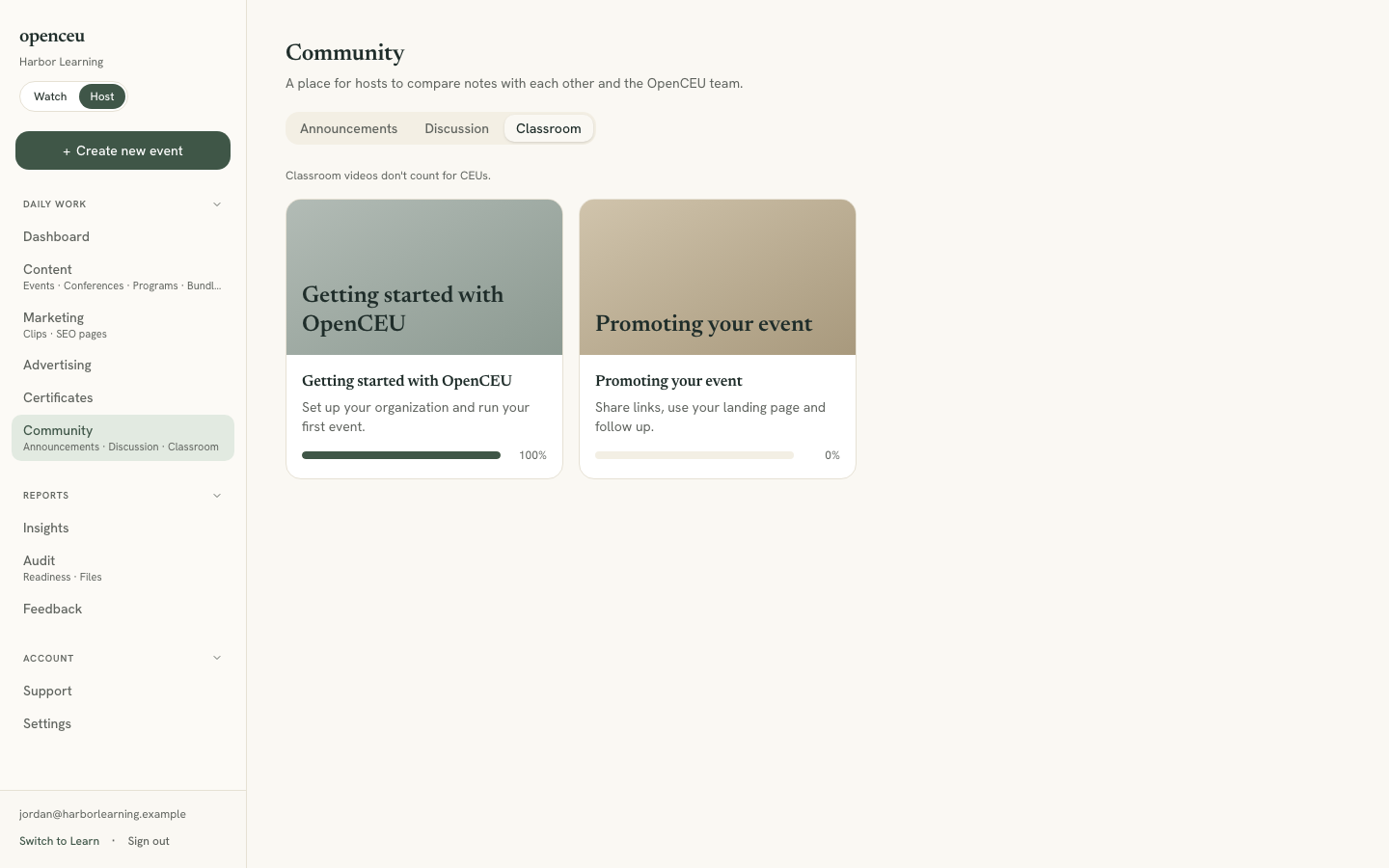
Short training courses made by the OpenCEU team. Open a course, pick a lesson from the list, and watch the video. Some lessons have files or links under the video. When you finish a lesson, click the check circle next to its title (Mark complete) and your progress bar fills in.
Classroom videos don’t count for CEUs. They are training for hosts, not courses for attendees.
Still stuck? Contact support and we'll help.